
Creating a proctored exam in Moodle
To test the integration with Moodle, create a proctored exam:
- Create a course in Moodle.
- Add a quiz to the course.
- Click Turn editing on and open the settings of the quiz.
- Scroll down to Restrict access and click Add Restriction > Proctor by Constructor to enable proctoring for this exam:
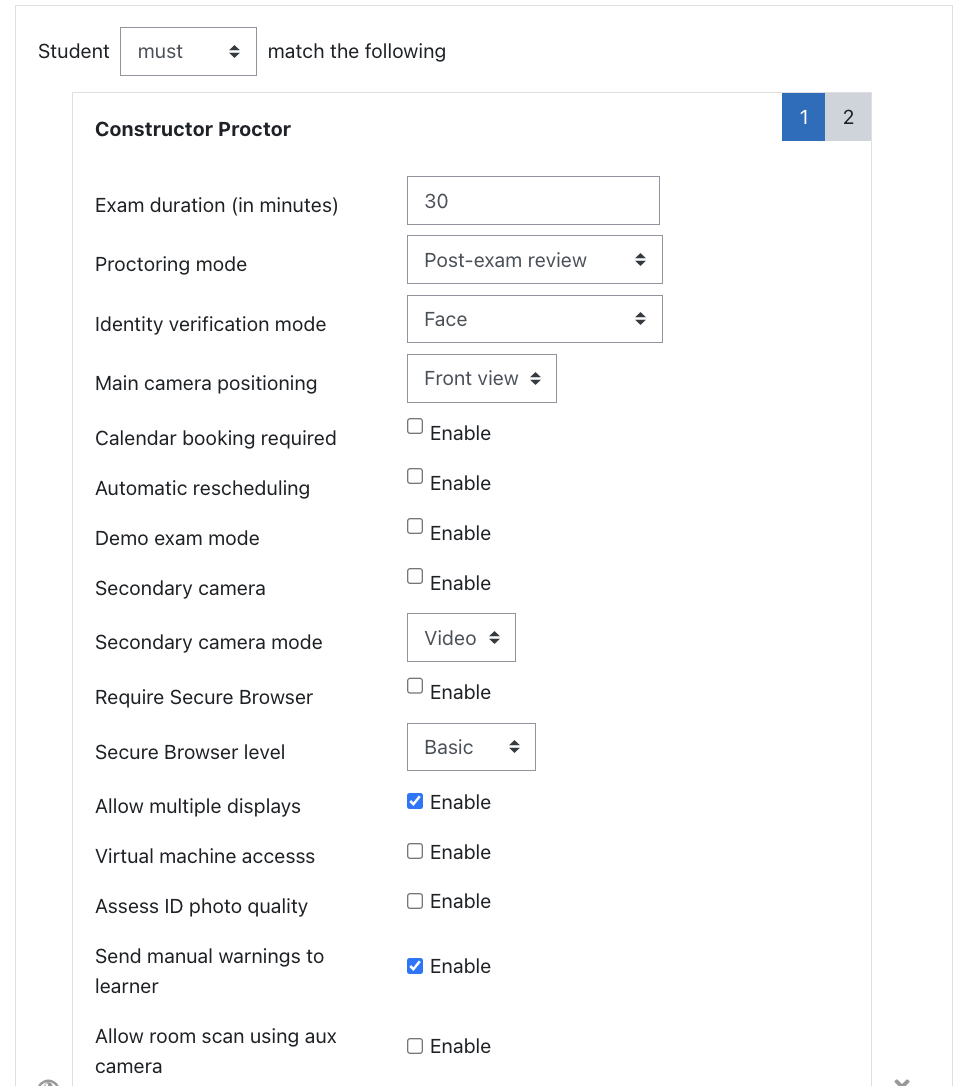
- Specify the proctoring parameters:
- Exam duration (in minutes) — leave this parameter unchanged as this value will be overwritten by the setting in Moodle.
- Proctoring mode — the proctoring mode used for the exam. The options include:
- Live — Live proctoring mode in which the number of examinees is restricted, and the exam is monitored by a human proctor in real-time (in addition to AI monitoring).
- Review — Post-exam review mode in which examinees take the exam at any time under AI supervision. The session is recorded and later reviewed by a human proctor to assess for violations.
- Identity verification mode — Options available:
- Face — only the examinee face verification is used.
- Face and ID — both face and ID verification are used.
- Only ID — only ID verification is used.
- None — verification is skipped entirely.
Note: This setting can be configured individually for each exam. For example, one exam may use only ID verification, while another may use both face and ID verification.
- Main camera positioning — position of the main camera:
- Front view — the default option, uses the front-facing camera (typical for laptops).
- Auxiliary (side view) — uses a side-mounted camera (for specific room setups with separate cameras).
Note: Side view uses different AI models due to the camera angle and is intended for specific setups by clients. The front camera is the default.
- Calendar booking required — if enabled, learners must book a time slot using the calendar in the dashboard. This option is intended for specific scheduling use cases and is rarely needed, so it can usually be disabled.
Note: This option is enabled by default but has no effect unless calendar booking is used.
- Automatic rescheduling — this option is related to calendar booking functionality. It is rarely used and is only relevant when exams are scheduled through the dashboard. In most cases, exams are created and learners join without scheduling.
Note: Most institutions use Moodle or a similar learning platform to schedule exams instead.
- Demo exam mode — when this option is enabled, exam sessions run in demo mode and no video is uploaded to the dashboard. It is intended for testing purposes, allowing you to run an exam without generating video recordings.
- Secondary camera (enable) — this parameter enables the use of a secondary (auxiliary) camera for additional monitoring. The secondary camera is accessed via a QR-code that learners scan with their phone during the pre-exam process.
Technical requirements:
- Learners must have a phone with a camera.
- The browser must have permission to access the camera.
- No additional application download is required (browser access only).
Recommended usage:
Recommended for high-stakes and final university exams because it provides better control over learner behavior because: - The phone is occupied by the proctoring session and cannot be used for other purposes.
- When positioned to the side, the camera can capture the keyboard and monitor area.
- Secondary camera mode — select how the secondary camera captures data:
- Photo — the system captures multiple snapshots throughout the session. These appear as individual images from the side view in the session report.
- Video — the system records continuous video throughout the session. The full recording is available for review in the session dashboard.
- Requirement Secure Browser — enables the use of the Constructor Secure Browser, a dedicated application that learners must download and install. The secure browser supports three security levels:
- Basic level:
- Detects virtual machine launches.
- Detects USB devices.
- Applies standard restrictions.
- Medium level:
- Includes all basic features.
- Applies additional restrictions while allowing limited flexibility.
- High level:
- Enforces maximum security.
- Prevents the exam window minimization.
- Blocks background applications.
- Forces full-screen, always-on-top mode.
- Creates a highly restrictive environment.
- Basic level:
- Allow multiple displays — if disabled, learners with multiple displays connected will not be able to proceed. This is checked during the pre-exam process when learners are asked to share their screen. If multiple screens are detected, the exam cannot continue.
Note: This setting works independently of the Secure Browser and does not require it to function.
- Virtual machine access — if enabled, learners are allowed to take the exam from within a virtual machine. If disabled, learners cannot proceed when a virtual machine is detected.
IMPORTANT: This feature works only with the Secure Browser. The default browser cannot detect virtual machine usage because it lacks access to the operating system. The Secure Browser, as a desktop application, can detect if a virtual machine is being used.
Note: This setting is typically relevant for computer science exams where learners may need virtual machines. Detection of virtual machine usage works independently of the Secure Browser security level (basic, medium, or high), and starts automatically at the basic level.
- Assess ID photo quality — checks whether the text on the ID photo is clear and readable. If the photo quality is insufficient, the learners will be prompted to retake the photo.
Note: This feature is active only when learner identification is enabled (Face, Face and ID, or Only ID modes).
- Send manual warnings to learners — this option in used for live review mode only. It allows the proctor to send manual warnings to learners in addition to the automatic warnings generated by the AI. The proctor can flag suspicious behavior in real time and send a warning directly to the student.
Note: This feature is available only in live review mode and not in post-exam review mode.
- Allow room scan using aux camera — enables a 360-degree room scan using the auxiliary (secondary) camera. When enabled, learners use their phone’s camera to perform the room scan.
Requirement:- The secondary camera must be enabled for this feature to be relevant.
If the secondary camera is not enabled, this setting has no effect.
Note: Room scan availability is configured at the web app level, not in individual exam settings. If room scan is enabled at the web app level, it is mandatory for all exams. To have some exams with room scan and others without, separate web app instances are required. Recommended usage:
Room scans allow proctors to verify that no unauthorized materials are present around the student. During live proctoring, if a proctor suspects suspicious behavior, they can request the student to repeat the room scan via chat. - The secondary camera must be enabled for this feature to be relevant.
- Terms and conditions URL — displayed at the start of the pre-exam process, this page lets learners review the exam terms. You can provide a URL for learners to access the full terms if they wish.
Note: Most learners do not open the page, but it is available if needed.
- Custom exam rules — enables adding your organization's specific rules as text. They are displayed below the preset rules on the rules page during the pre-exam process. Preset rules outline forbidden and allowed behaviors, while custom rules let you provide additional guidance.
Example: "You can use a two-sided A4 cheat sheet for this exam." - Calculator (On/Off) — enables an embedded calculator within the exam interface. When enabled, a small calculator icon is displayed for learners.
The available options are:- Simple — a basic calculator.
- Scientific — a scientific calculator with advanced functions.
- Streams preset — select the video recording mode for the exam:
- Default — standard video recording (recommended for online exams).
- No Video — disables video recording. It's typically used for on-campus exam rooms where the Secure Browser ensures learners cannot leave the exam page, making video recording unnecessary in a controlled physical environment.
Note that for the No Video mode:- The secure browser should be used in high-security mode; otherwise, proctoring is ineffective.
- Webcam recording is disabled.
- Screen recording remains active.
- Audio is not recorded, as it is unnecessary in a physical exam room.
- This mode was designed to comply with GDPR requirements in Germany.
- It is typically used in combination with the secure browser and without AI detection.
- Preliminary check of student’s identity — when enabled, if a learner has a photo in their Moodle profile, the photo they take during the exam is compared to the profile photo. The system indicates whether the learner passed or failed this check.
Requirements:- Preliminary check of student’s identity must be used with Face or Face and ID verification modes.
- A learner must have a photo in their Moodle profile.
- Typically, learners cannot change their own Moodle photos.
- Photos are usually synchronized from the Student Information System (SIS) to Moodle to ensure they are officially approved.
- Allow during exam — these rules are displayed during the pre-exam rules step and affect both what learners see and the violation detection.
The available options for actions that can be allowed for learners are:- Browsing the Internet
- Using books or reference materials
- Taking notes on paper
- Using messengers
- Using calculator
- Using Microsoft Excel
- Using other person's help
- Leaving webcam frame
- Talking
- Prolonged looking away from screen
IMPORTANT: The following settings directly affect violation detection:- Enabling Browsing the Internet disables the Active Window Changed warning.
- Allowing Talking prevents voice detection warnings.
- Allowing Prolonged looking away from screen (useful for open-book exams) disables related warnings.
Note: These settings are quick presets. You can also add custom rules using the Custom Exam Rules field. For example, in open-book exams, you may disable Looking Away warnings and set the score to zero. Secure browser interaction:
If the Secure Browser is enabled at high security, learners will have no tabs available regardless of the Allow Internet setting. Secure Browser restrictions have the highest priority. - Forbidden Processes and Allowed Processes — these two settings require the Secure Browser. In these fields, you can specify which applications or processes are forbidden or allowed during the exam.
Usage:- The default process list blocks many applications.
- To allow a specific application (for example, Microsoft Excel), enter its process name; it will become allowed in Secure Browser mode
- Ensure the process name is correct for the exclusions to work properly. Consult the support team to verify the exact name.
Secure browser interaction:
The Medium mode is recommended when allowing processes. The High mode enforces full-screen restrictions and blocks many interactions, making it harder to allow specific applications.
- AI alert visibility — controls which AI alerts are visible to learners during the exam. Detection is unaffected; violations are still recorded, but pop-up notifications may be hidden from learners.
The available alert types are:- Multiple persons in frame
- Test taker substituted
- Test taker is absent
- Prolonged looking away from screen
- Active window is changed
- Forbidden hardware
- Voice detected
- Phone is used
Usage scenarios:- Disable all alerts to learners — alerts remain visible to proctors and in post-exam review, but learners do not see pop-ups (reduces distraction).
- Enable all alerts — learners receive notifications when they behave incorrectly, which allows them to self-correct (typical scenario).
- Disable selected alerts — useful for specific exam types, for example, oral exams where talking is expected.
- Scoring parameters — configure the scoring weight for different types of violations. Each violation type has its own parameter.
How scoring works:- Default threshold: 80 out of 100.
- Scores above 80 automatically flag a learner as a cheater.
- Scores below 80 do not trigger a flag.
- Custom thresholds can be set per exam.
- If left blank, the threshold defaults to 80.
Scoring formula:
The score is calculated based on:- Points assigned to each violation type.
- Duration of the violation.
- AI analysis factors.
- Each detected violation increments the score accordingly.
- The dashboard displays the calculated score (for example, 190).
- Save the changes.
Learners who were enrolled in this course won't be able to take this quiz without proctoring from now on.
General recommendations
For high-stakes exams:
- Use the secondary camera with the Video mode.
- Use Secure Browser (medium or high level, depending on the requirements).
- Enable Face and ID verification.
- Use the Live proctoring mode.
For low-stakes or intermediate tests:
- Optionally, skip the secondary camera to simplify setup.
- Use the basic Secure Browser or standard browser.
These setting still provide a reasonable level of control.
For open-book exams:
- Disable Looking Away warnings.
- Set Looking Away score to 0.
- Allow Using the Internet if needed.
- Consider allowing Using calculator.
For on-campus exams (GDPR compliance):
- Use No Video mode.
- Use Secure Browser in the High mode.
- Disable AI detection.
Screen recording remains active, but it captures only the exam page.
Parameters that could be removed or simplified
The following parameters are rarely used and may be removed to reduce complexity:
- Exam duration (it's overwritten by Moodle)
- Calendar booking required
- Automatic rescheduling
- Demo exam mode (retains a specific use case)
Integration notes
- Most settings are exam-specific and can be configured per exam.
- Some settings, such as room scan, are configured at the web app level; different configurations require separate web apps.
- Settings can be combined in various ways based on exam requirements.
- Creating mock exams is recommended to allow learners to practice and test their equipment.