
Introduction
Assess interface overview
The general view of the Constructor Assess interface is shown in the screenshot below.
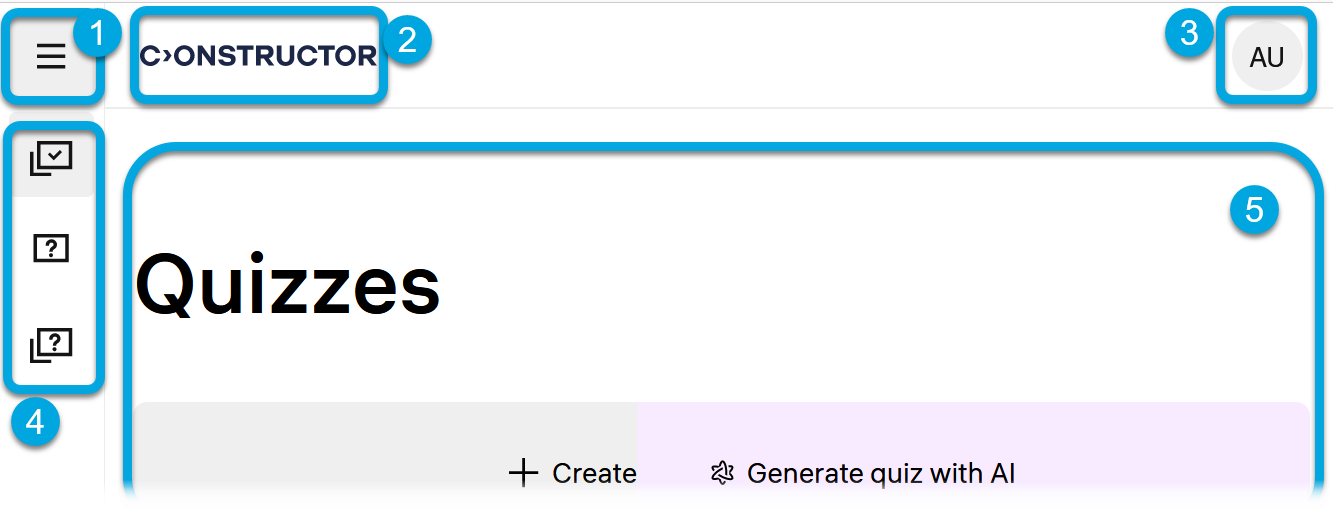
According to the numbers in the screenshot, the Constructor Assess UI has these main parts:
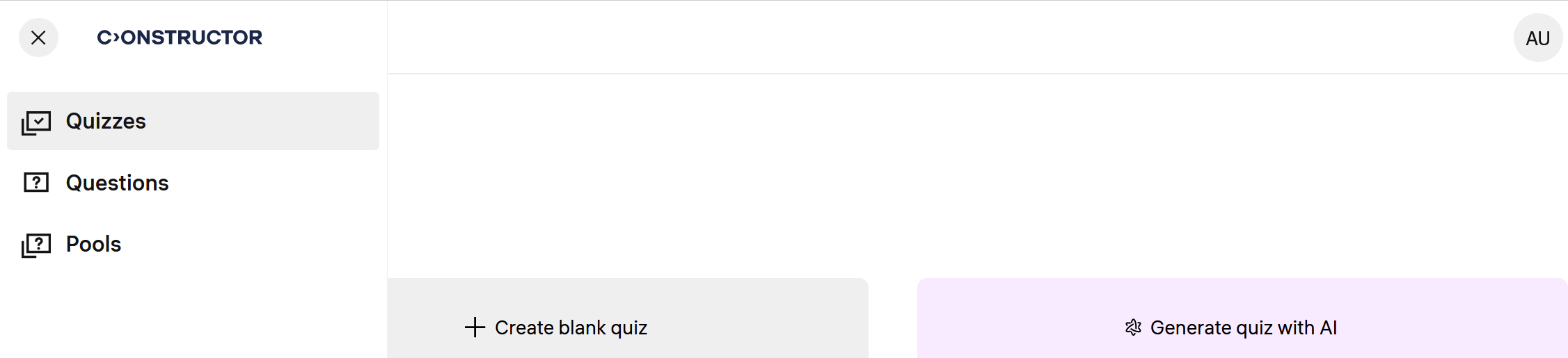
- 1 — the main menu; clicking the main menu displays the available menu sections.
- 2 — the logo; clicking the logo returns you to the home page.
- 3 — your profile menu with the interface language options and the logout button.
- 4 — the navigation elements, menus:
- Quizzes — the list of quizzes you have created. You can use filters to quickly find a quiz you need. Here you can create quizzes, configure quiz and proctoring settings, and enroll learners in quizzes.
- Questions — the list of questions available for adding into quizzes. You can create questions manually, generate with AI, or import from an external system.
- Pools — the list of question pools available to you for using in quizzes.
- 5 — the contents of the currently opened menu (by default, the list of courses you are enrolled in).