
Configuring quiz settings
To configure a quiz settings:
- Go to Quizzes.
- In the quiz list, click the required quiz for editing.
- Switch to the quiz settings
 .
.
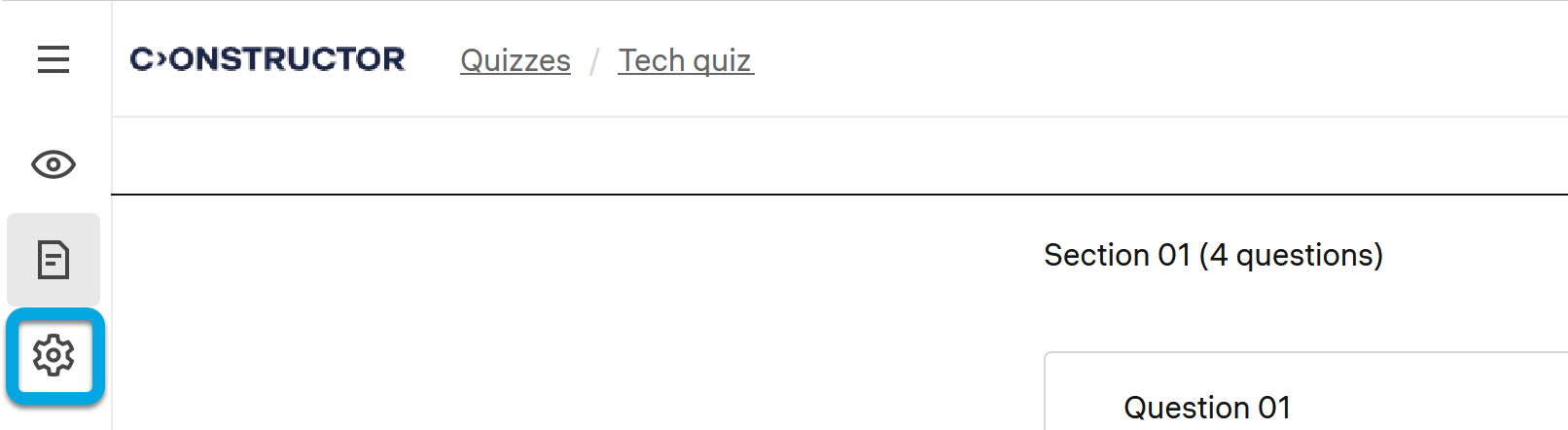
You can configure the following quiz settings:
General settings
- Title — the quiz title.
- Availability period — a period when the quiz (exam) is available to the enrolled learners for taking.
- Description — a short description of the quiz.
- Cover image — an image to use as a quiz cover.
Proctoring mode
- Soft — Automatically checks video for violations and calculates the final score. Warns learners in real-time for major violations, such as being out of the camera frame or other persons’ presence.
- Medium — Requires installation of Secure Browser for the full protection against third-party applications during the exam. The final score is manually assigned by the proctor.
- Restricted — Ensures maximum security during exams. Requires learners to connect an additional camera for a full view of the desk. Proctors monitor learners in real time and can intervene if necessary.
Passing settings
- Quiz duration in minutes — for a timed quiz, specify its duration.
- Passing threshold — the minimum score learners must gain for the quiz to be marked as successfully passed.
- Show feedback text— select to enable displaying to a learner the pre-configured feedback when they submit answers.
- Show correct answers — select the level of the quiz results detailing to learners:
- All correct and incorrect answers— after submitting the quiz, learners will see which answers are correct and which are incorrect.
- Learner's correct and incorrect answers — after submitting the quiz, learners will see which of their answers are correct and which are incorrect.
- Total score and score per question — after submitting the quiz, learners will see only the total score and the score for each question.
- Only total score for the quiz — after submitting the quiz, learners will see only the total score for the whole quiz.
- No grades — after submitting the quiz, learners will not see any grades.
- No responses — after submitting the quiz, learners will not see any data.
- Shuffle questions — select to change the order of questions every time the quiz starts.
- Shuffle options in questions — select to randomize the order of answer options in all questions of a quiz each time a learner takes the quiz.
- Shuffle sections — select to randomize the order of all sections of a quiz each time a learner takes the quiz.
- Show hints — select to enable showing hints.
- Show section names — to learners select to enable displaying the names of sections in a quiz to learners.
- Click Save.
See also:
- Configuring quiz availability period
- Configuring quiz proctoring mode
- Configuring quiz duration
- Configuring quiz result visibility
- Enabling shuffling questions
- Enabling shuffling options in all questions
- Enabling shuffling quiz sections
- Enable showing hints to learners
- Enabling showing section names to learners