
Configuring custom actions
Adding script-based custom actions
To add a script-based custom action to your lab:
- In the LMS authoring interface, go to Authoring > Labs.
- In the Labs menu, open your lab.
- From the lab Overview tab, switch to the Content tab.
- Click + Action.

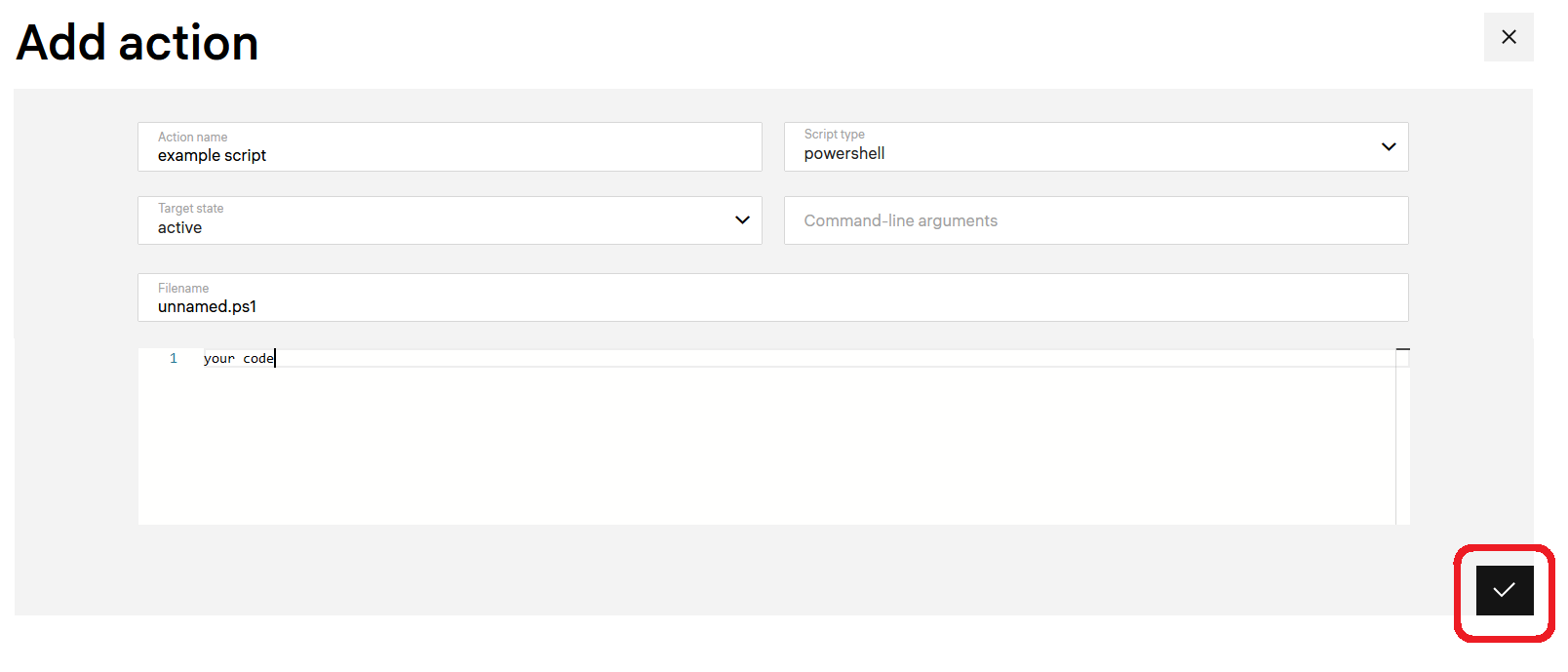
- Specify the following parameters:
- Action Name — the name of the custom action.
- Script type — the type of script (bash, powershell, or python).
- Target state — for the after type, the VM session state:
- active — the VM is running.
- cleaned — the VM is cleaned after performing a lab.
- finished — the lab is completed, after this state all data can be cleaned.
- prepared — the initial VM state before it can run.
- Command line arguments — the command-line arguments to pass to the script.
- File name — the name of the file with the script entered.
- Enter the script into the command line interface.
- Click the checkmark to save the action.
- Repeat steps 6–7 to add all other steps of the action you create.