
Finding courses in the course list
All courses on the My courses page are listed in alphabetical order.
You can find a course you need by applying one of the following methods:
- Searching for courses by names or keywords
- Searching for courses by collections
- Filtering courses
See the details below.
Searching for courses by names or keywords
You can search for a course by its name, part of the name, keywords, or description. To do this, type the search term into the Search field and press ENTER.
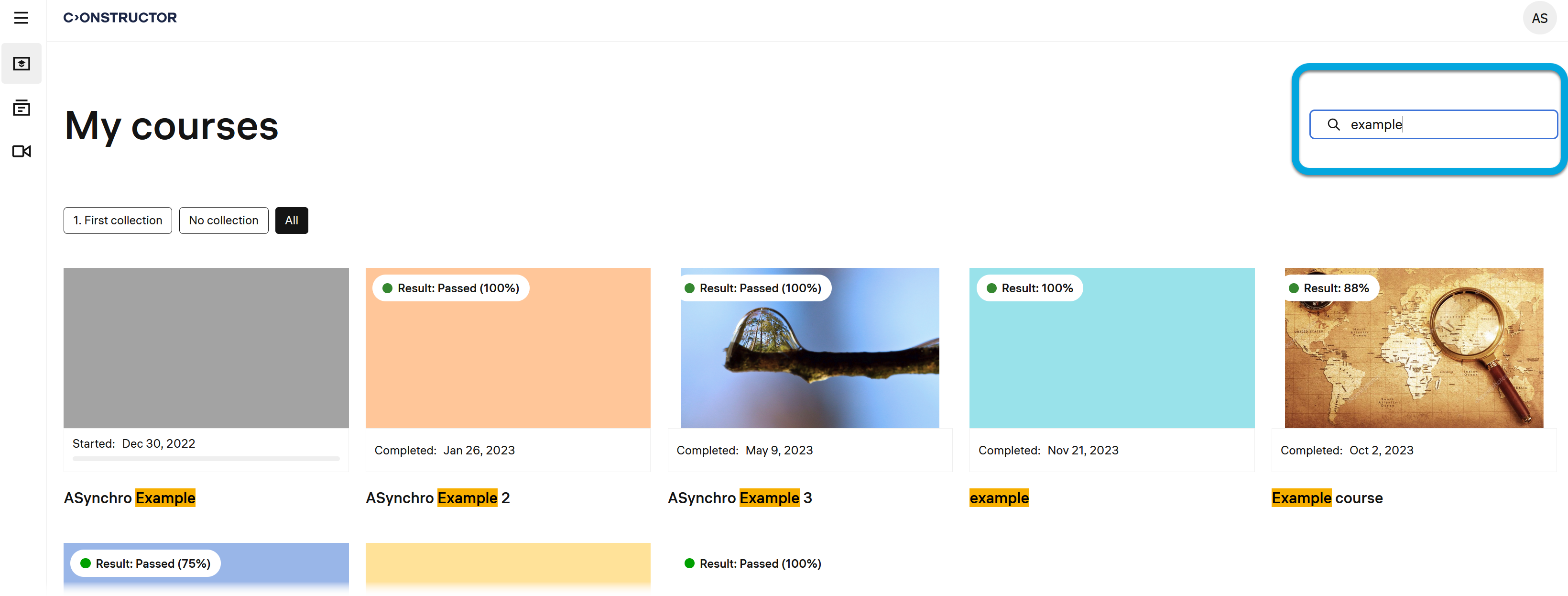
The search results will be displayed in alphabetical order with the search terms highlighted.
To clear the results, clear the Search field.
Searching for courses by collections
Courses may be grouped in accordance to topics they cover and assigned corresponding labels. For your convenience, you can use labels to quickly find courses on the My courses page.
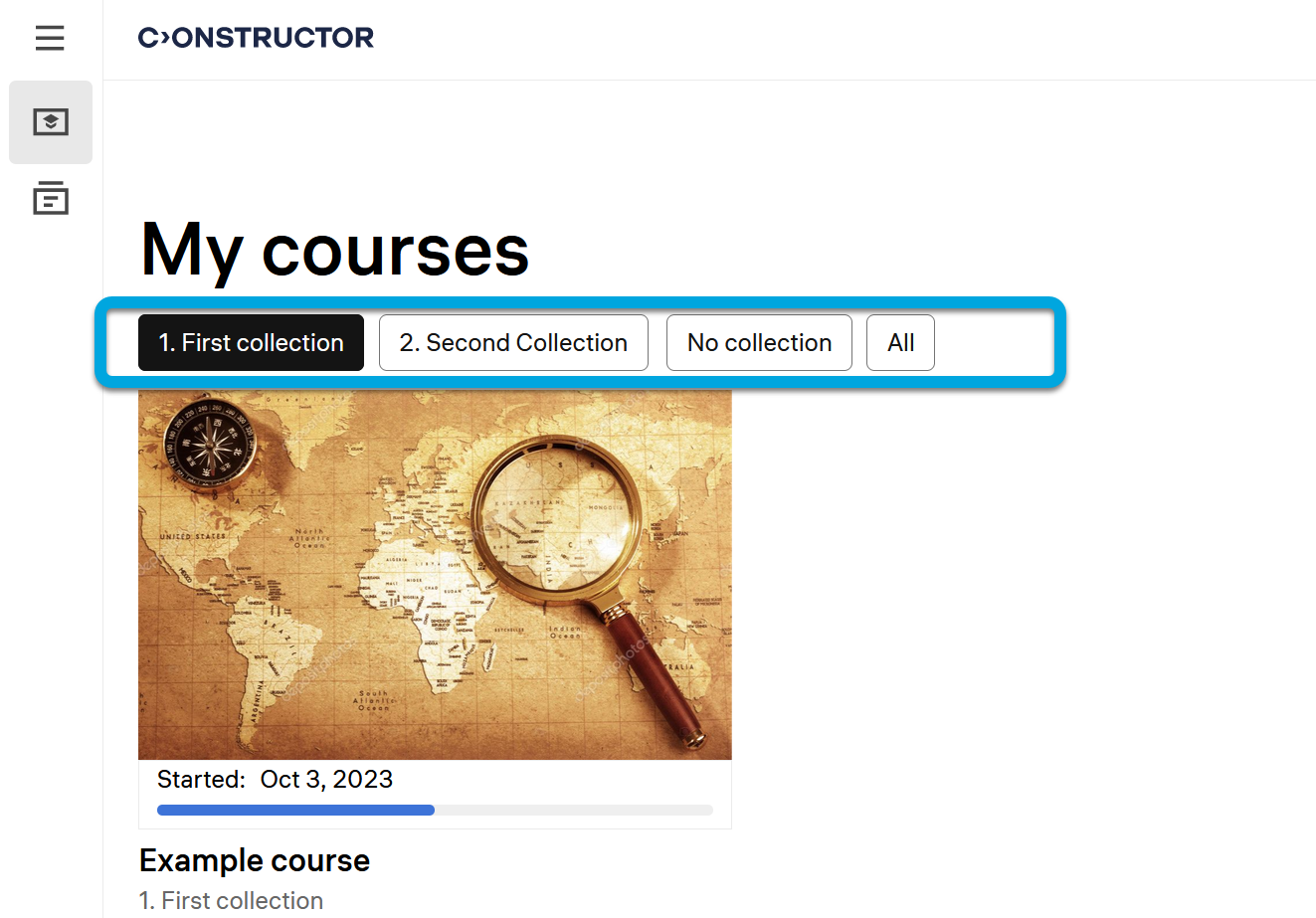
Clicking All displays all the courses available to you.
Filtering courses
You can filter courses based on their current progress, whether they are mandatory, or by academic year term.
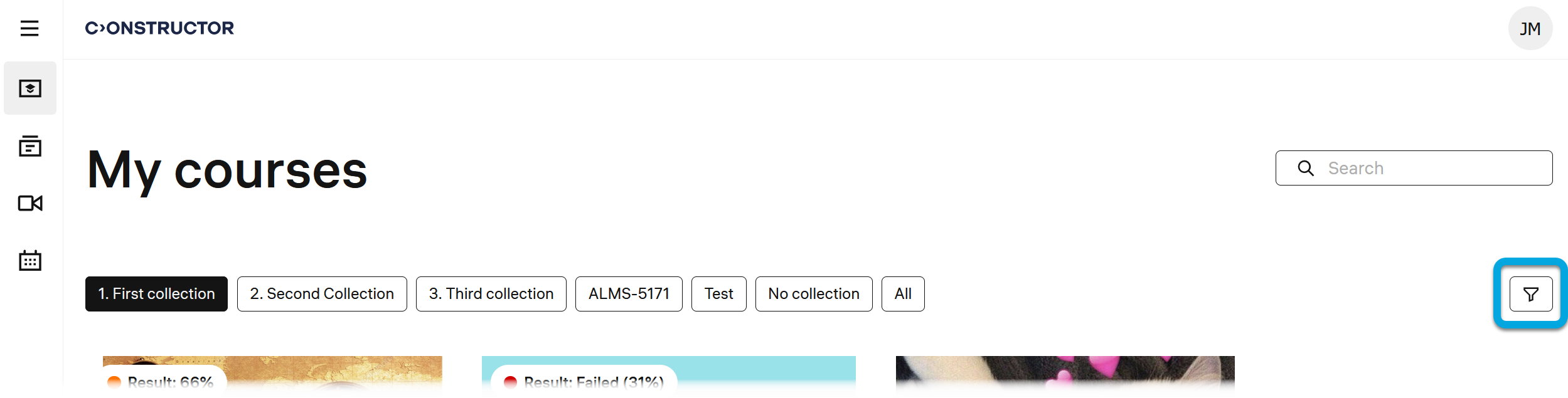
To set up course filtering on the My courses page, click the filter icon and select from the following criteria:
- Course progress — filter by the current status of the course:
- Not started — courses that you have not started taking yet.
- In progress — courses that you have started taking.
- Completed — courses that you have completed.
- Course priority — filter by the type of enrollment:
- Mandatory — courses assigned by your instructor, professor, or teacher that are required for completion.
- Optional — courses you have chosen to enroll in, which are not required for completion.
- Term — filter by the academic year term courses belongs to.
- Collections — filter by collections into which courses are grouped based on their topic.
Filtering applies immediately after selecting a criterion. The number of criteria set is displayed on the filter icon. To clear the results, click the filter icon and click Clear filters.
Note: You can apply filters on your Catalog page and copy the URL from your browser’s address bar. When you share this link with others, the Catalog will open for them with the same filters applied.