Downloading session videos and reports in bulk
You can download all videos of proctored sessions stored in Archive at once. To do so, you will need to:
- Install the Proctor Video Downloader when downloading videos for the first time (or run earlier installed Proctor Video Downloader locally).
- Download session videos.
Installing Proctor Video Downloader
- In the Proctor administrator dashboard, go to Archive.
- Click Download.
- Select your operating system and architecture.
- In the Download the utility section, click Proctor Video Downloader.
- Run the Proctor Video Downloader.exe file and install the utility. The Proctor Video Downloader dialog for token entry will open.
Downloading session videos
To download session videos or reports in bulk:
In the Proctor Administrator dashboard, go to Archive.
Click Download.
Select your operating system and architecture.
Copy the token provided on the Downloading sessions page. A new token is generated on each download.
Run Proctor Video Downloader locally.
In the token entry dialog, paste the token.
Click Next step.
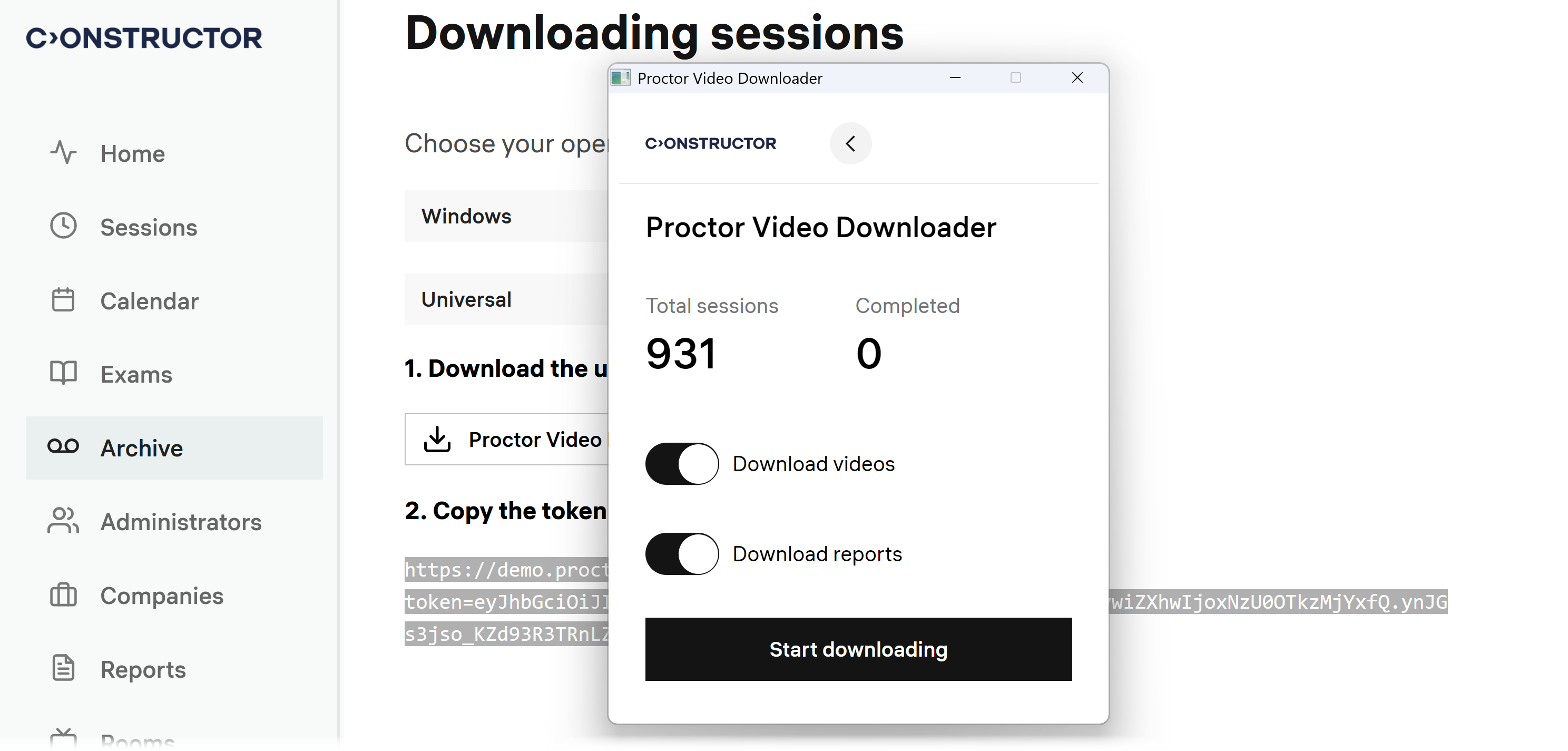
Specify what you want to download:
- Download videos — to download multiple exam session videos.
- Download reports — to download multiple exam session reports.
Click Start downloading.
Specify the local folder where the videos or reports should be saved. Each session video or report will be saved in its own folder labeled with the session ID.