
Managing courses
Enabling proctoring for courses
You can enable proctoring for quizzes or exams in a course. In this case a learner will be monitored either by a human proctor or with the aid of Artificial Intelligence while taking the exam or quiz.
IMPORTANT: To configure proctoring, Constructor Proctor must be integrated for your organization. Contact your administrator for more information.
To enable proctoring for a course:
- In the Learn management portal, click
 in the upper-left corner.
 - Go to Teaching > Courses.
- In the courses list, double-click the required course to start editing.
- Switch to the Proctoring tab and switch the Enable proctoring toggle.
Note: By default, the proctoring is enabled reviewing the course after completion is disabled for learners. To enable it, check the Supports review after completion box in the course settings. See Editing learner enrollments. .
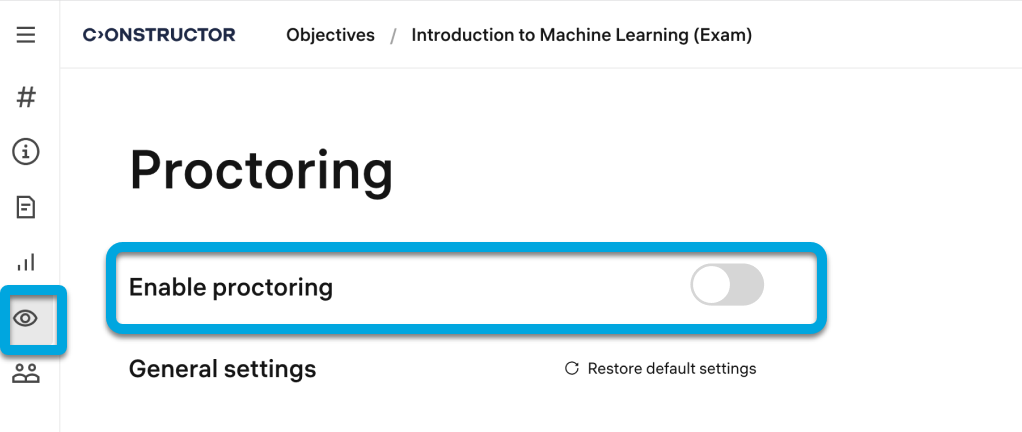
- If necessary, specify the proctoring settings. See Configuring proctored exam.
- Click Save.