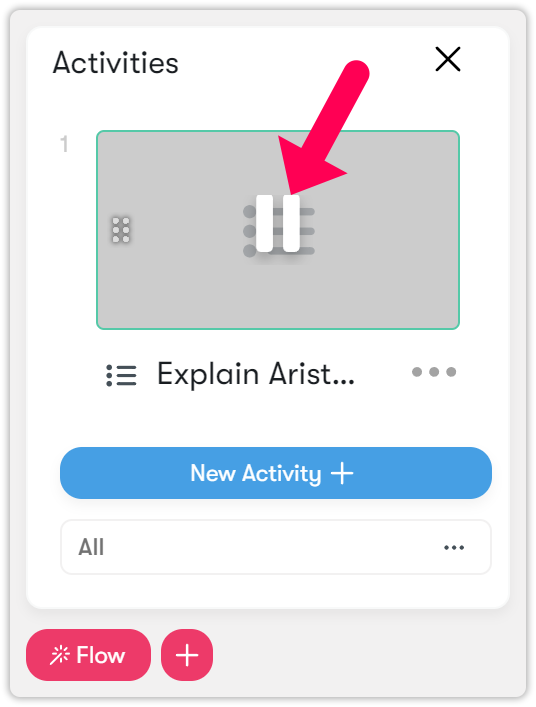
Flow menu
Assessments
With the Assessment menu, you can create and manage questions for interactive learner assessments.
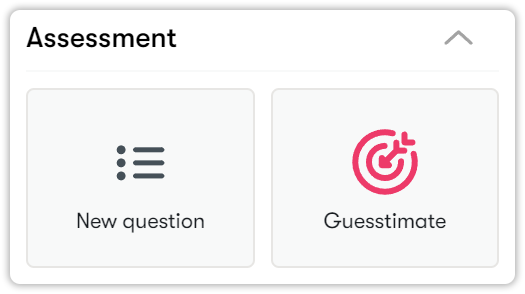
Adding new questions
Follow the steps below to create a new question.
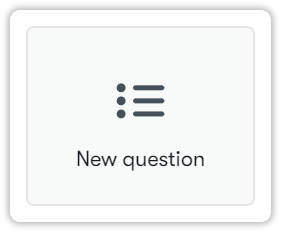
- Click New question.
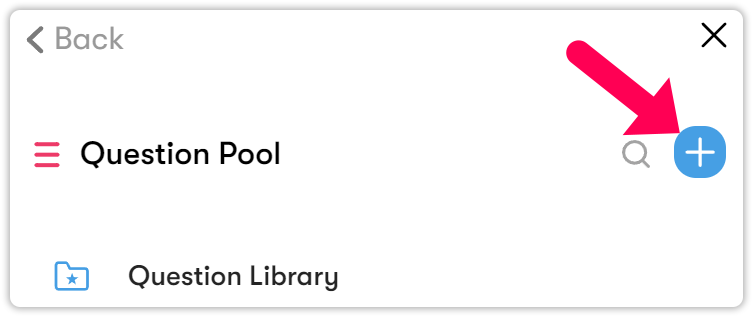
- To add a question, click on the blue plus button.
- Select the type of question you want to add.
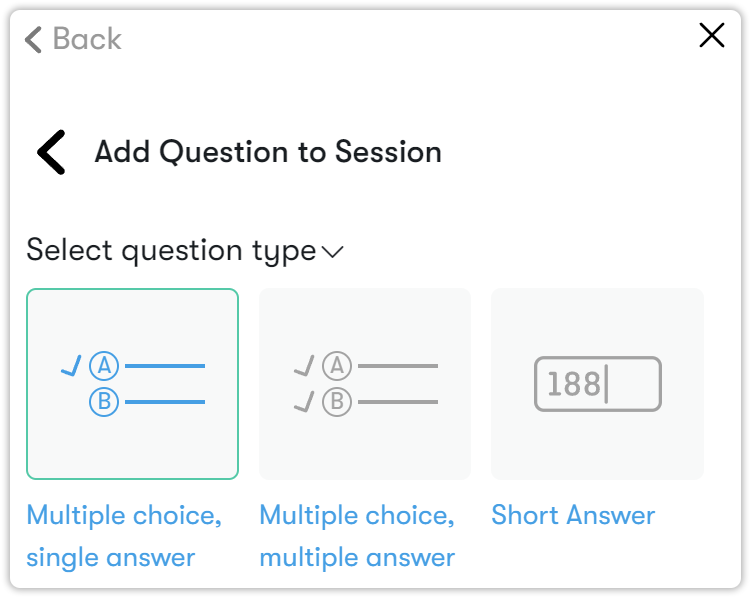
- For a multiple-choice question, enter your question text and options. Make sure there's a green checkmark next to the correct answer. For multiple answers, place a green checkmark next to all correct options.
- For essay questions, provide the question.
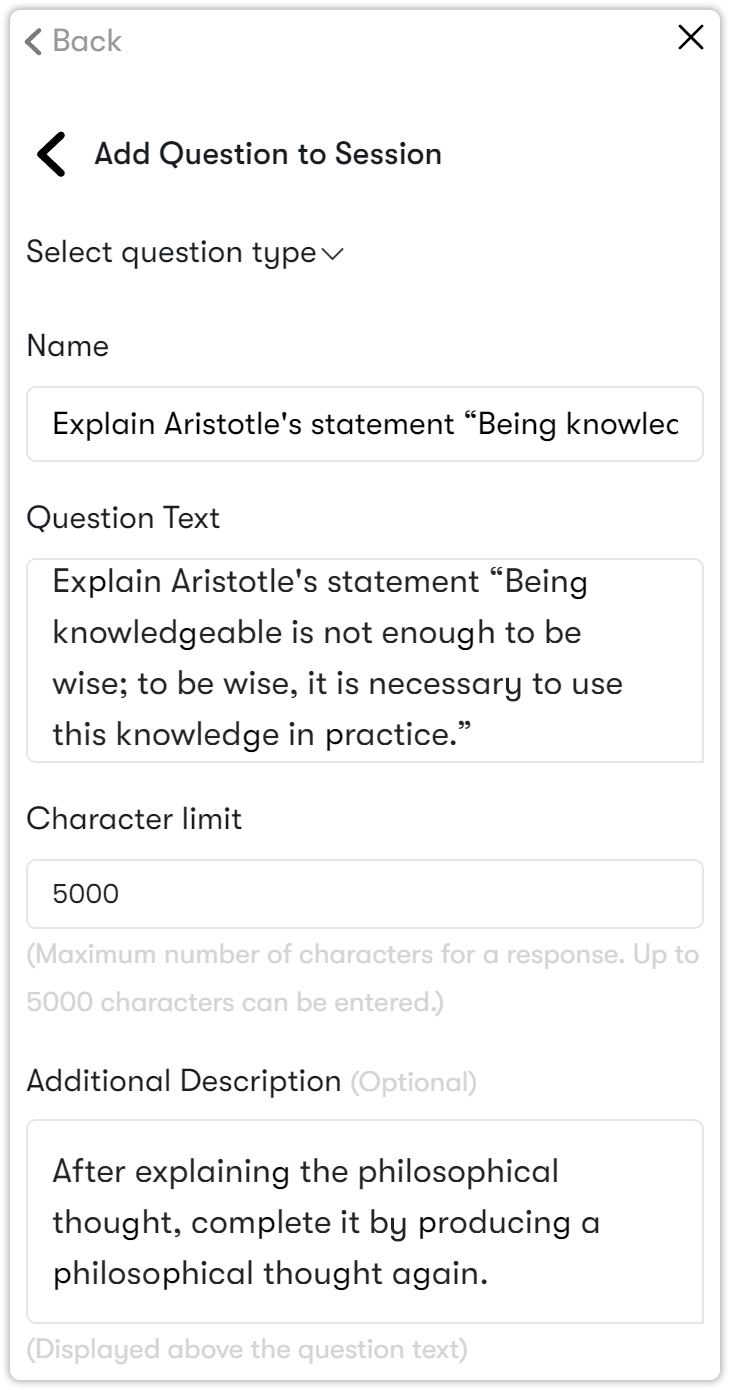
If your question includes images, you can add an image. Once you've finished, click Add to session.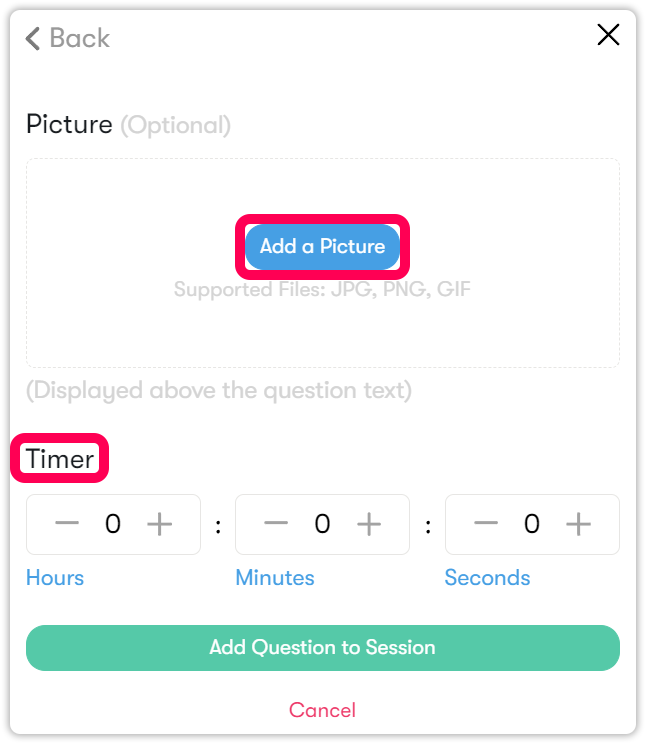
- Click the Play icon on the activity to publish the question.
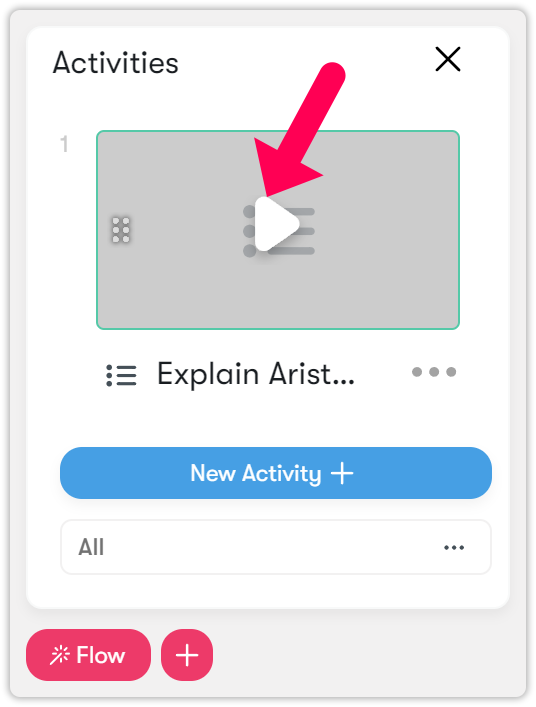
- The question is then broadcast to all students, appearing on their quiz screens.
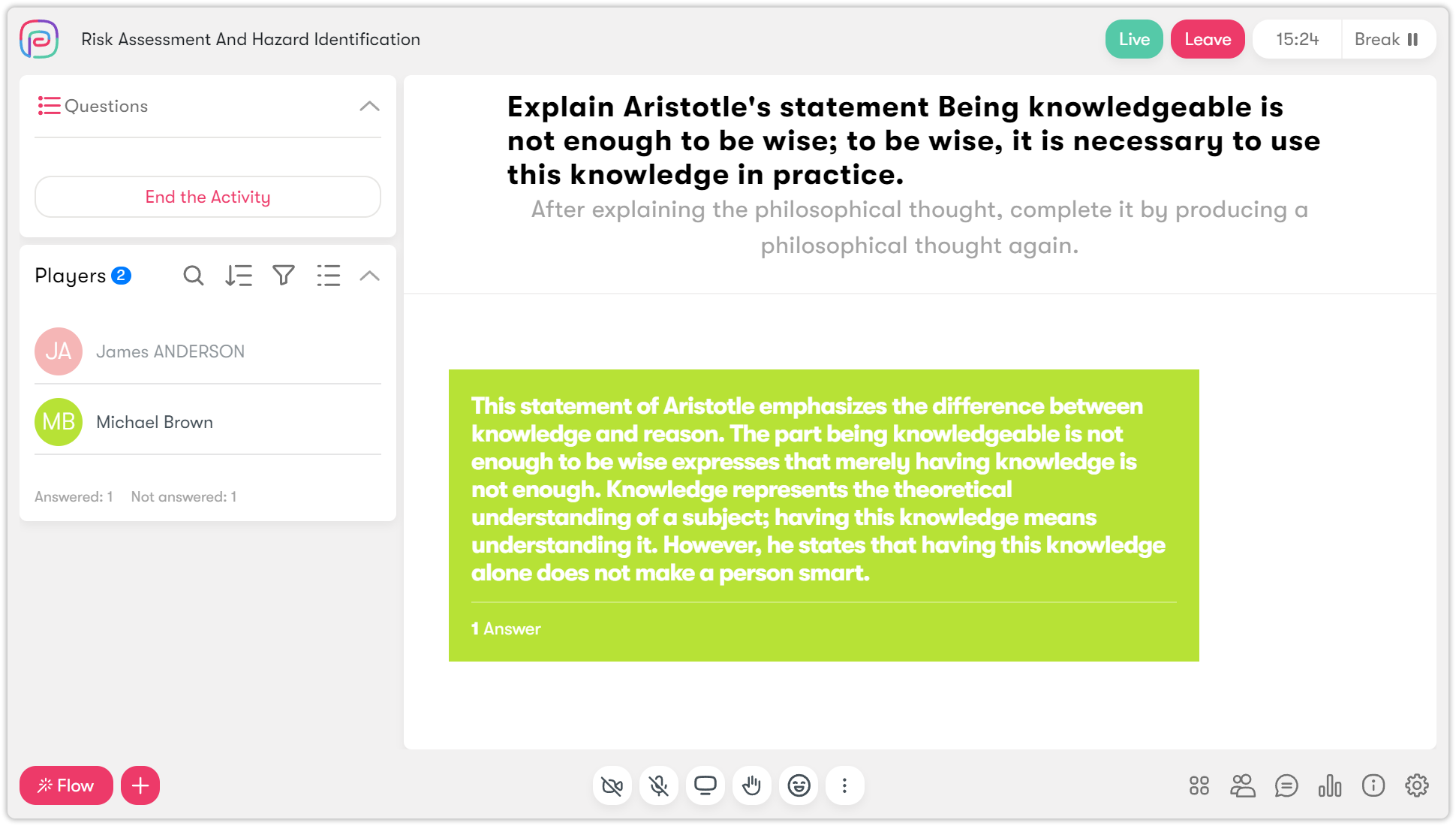
- After students have answered, click the Pause icon on the activity in the Flow to remove the question from their screens.