
Flow menu
Documents and Whiteboards
With the Documents and Whiteboards menu, you can upload documents to the system and add a whiteboard.
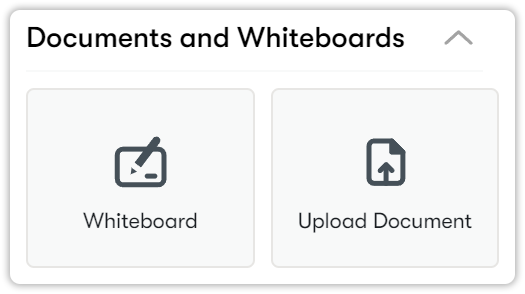
Adding a whiteboard
To add a whiteboard to your virtual classroom for in-class use, follow these steps:
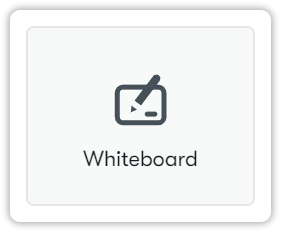
- Click Whiteboard.
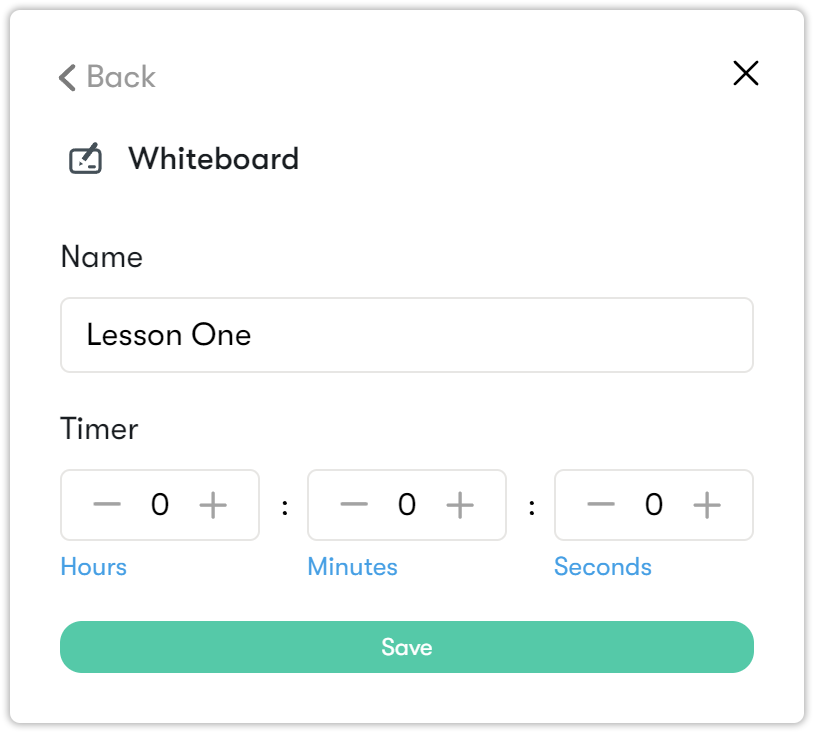
- Name your Whiteboard activity, specify for how long this activity stays on the page with a timer, and click Save.
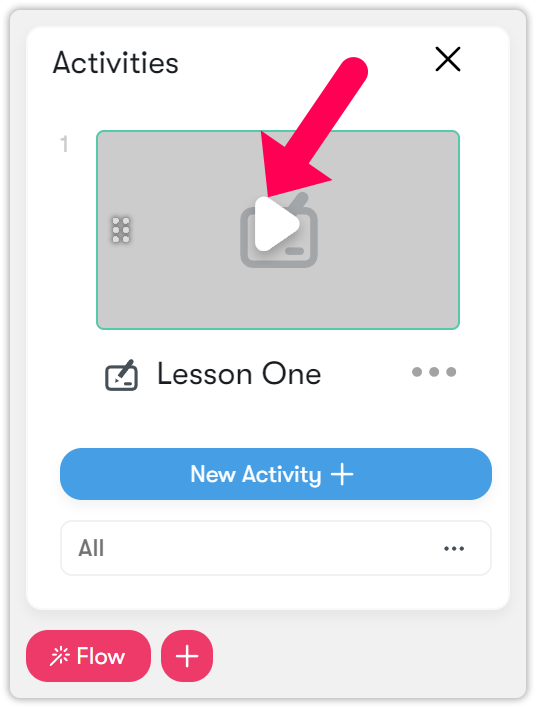
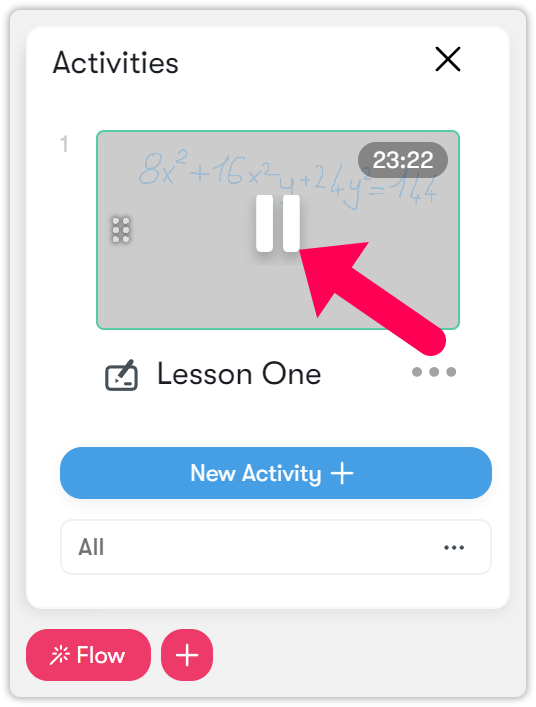
The Whiteboard will be displayed in the Activities section. - Click the Play button on the whiteboard to display it on the screen and make visible to students.
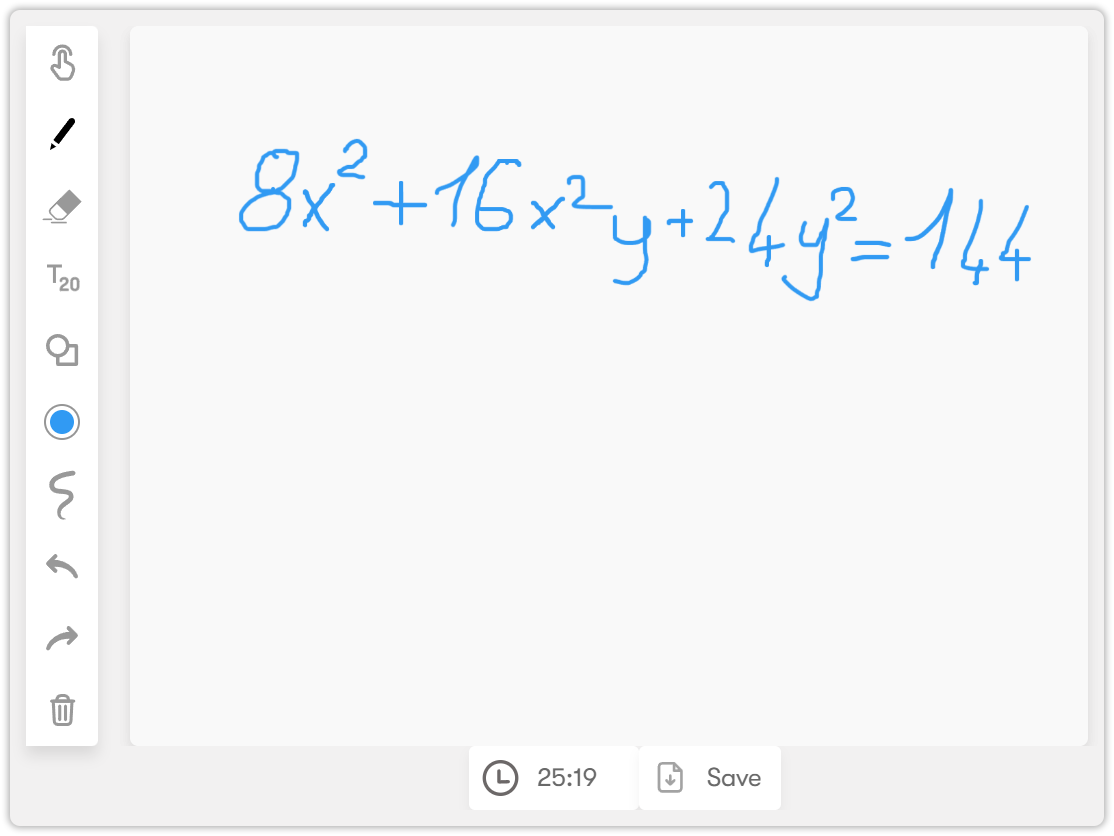
- To explain your lesson to students using drawings, use the pen, highlighter, pointer, and eraser tools in the left toolbox.
- To remove the whiteboard from the main screen, click the Pause icon.
Uploading a document
To upload documents to your virtual classroom for in-class use, follow these steps:
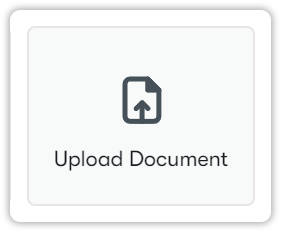
- Click on the Upload Document button.
- Then click on the blue plus button.
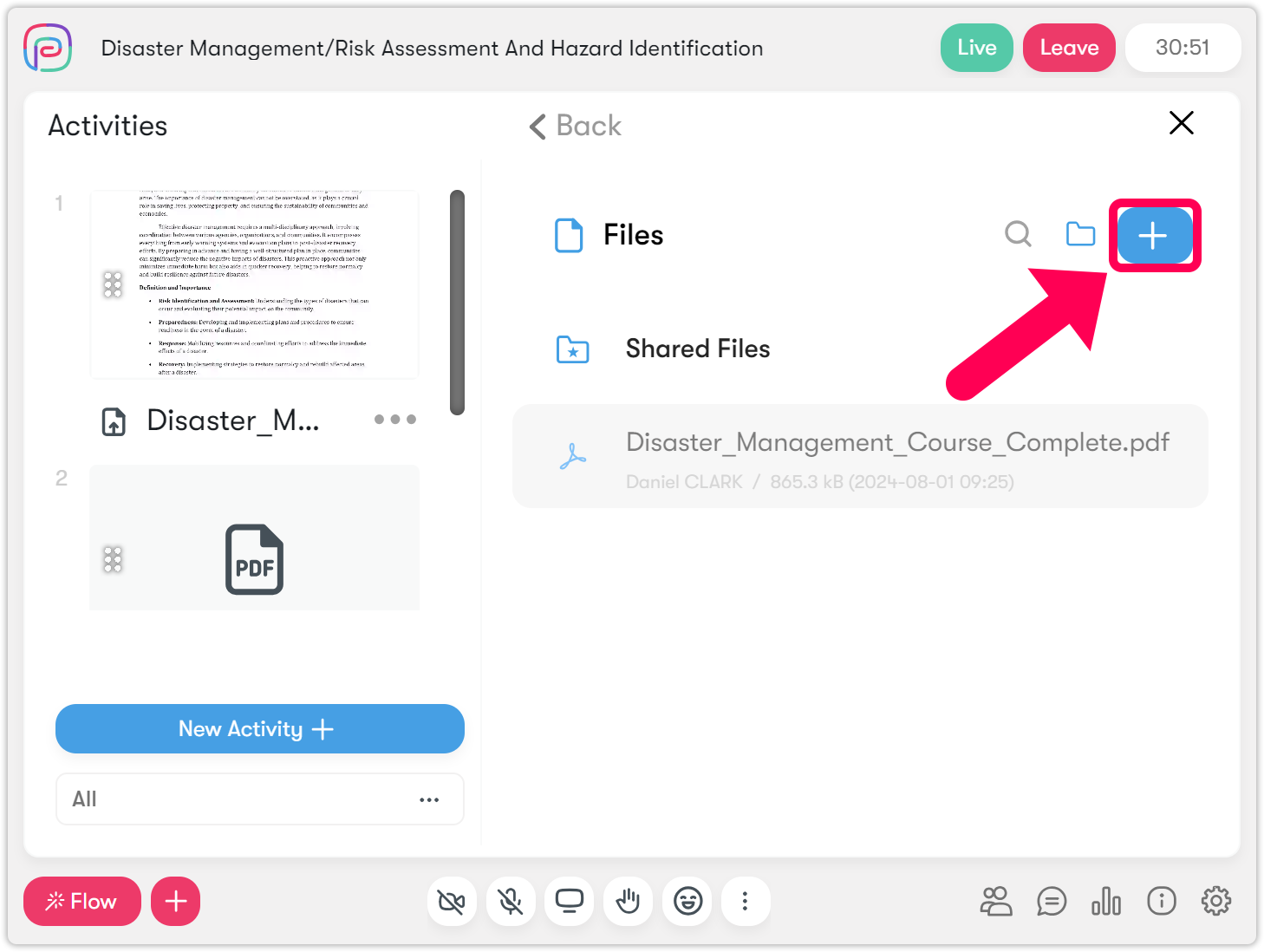
- Since only PDF files are uploaded to the system, select your relevant PDF document and click the Open button.
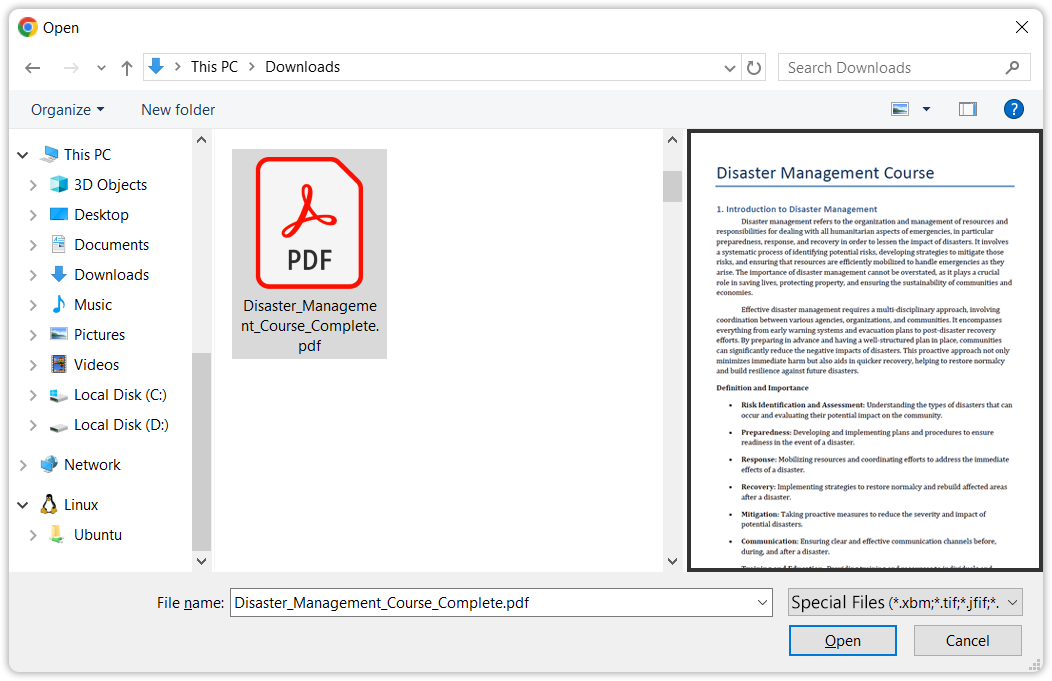
- Your file has arrived, but click on it to reflect it in the activities section.
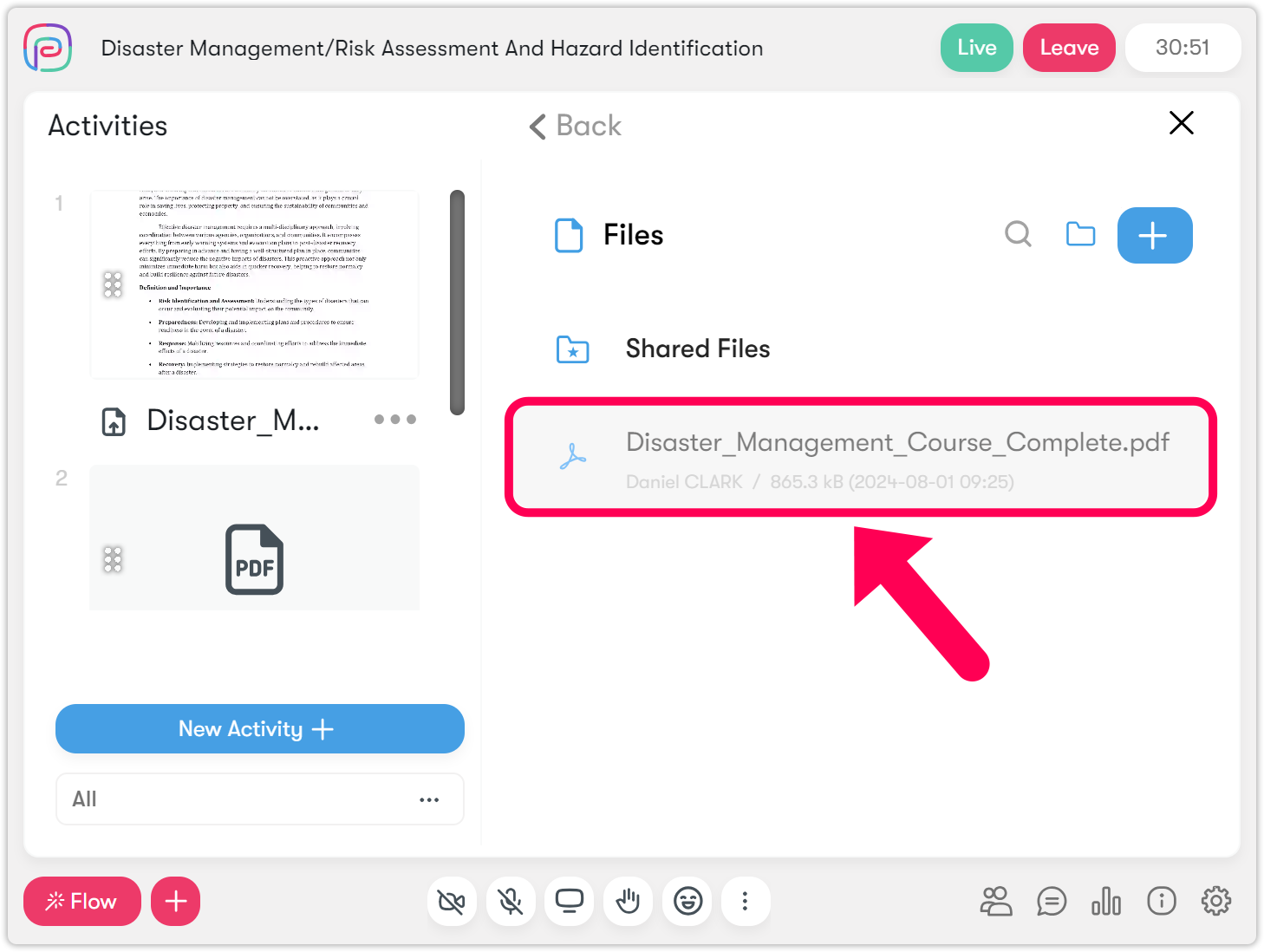
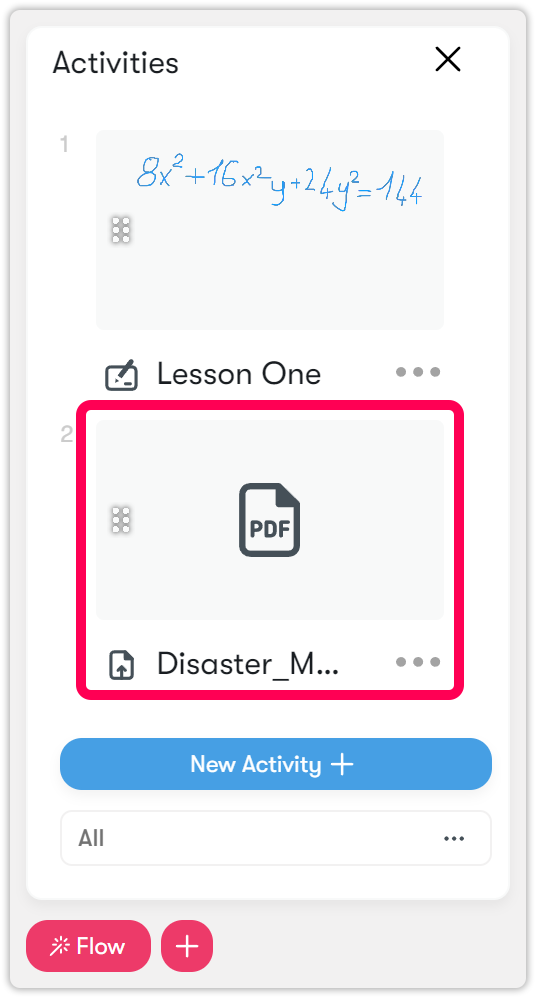
- You will see that your document is in the activities section.
- In order for the document to be reflected on the main screen, you must activate its visibility by pressing the Play button, as in other activities.
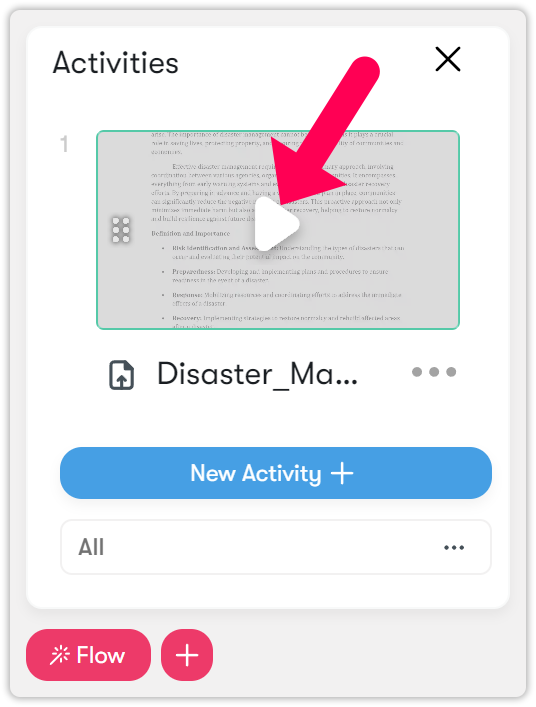
- The document is opened to the visibility of students.
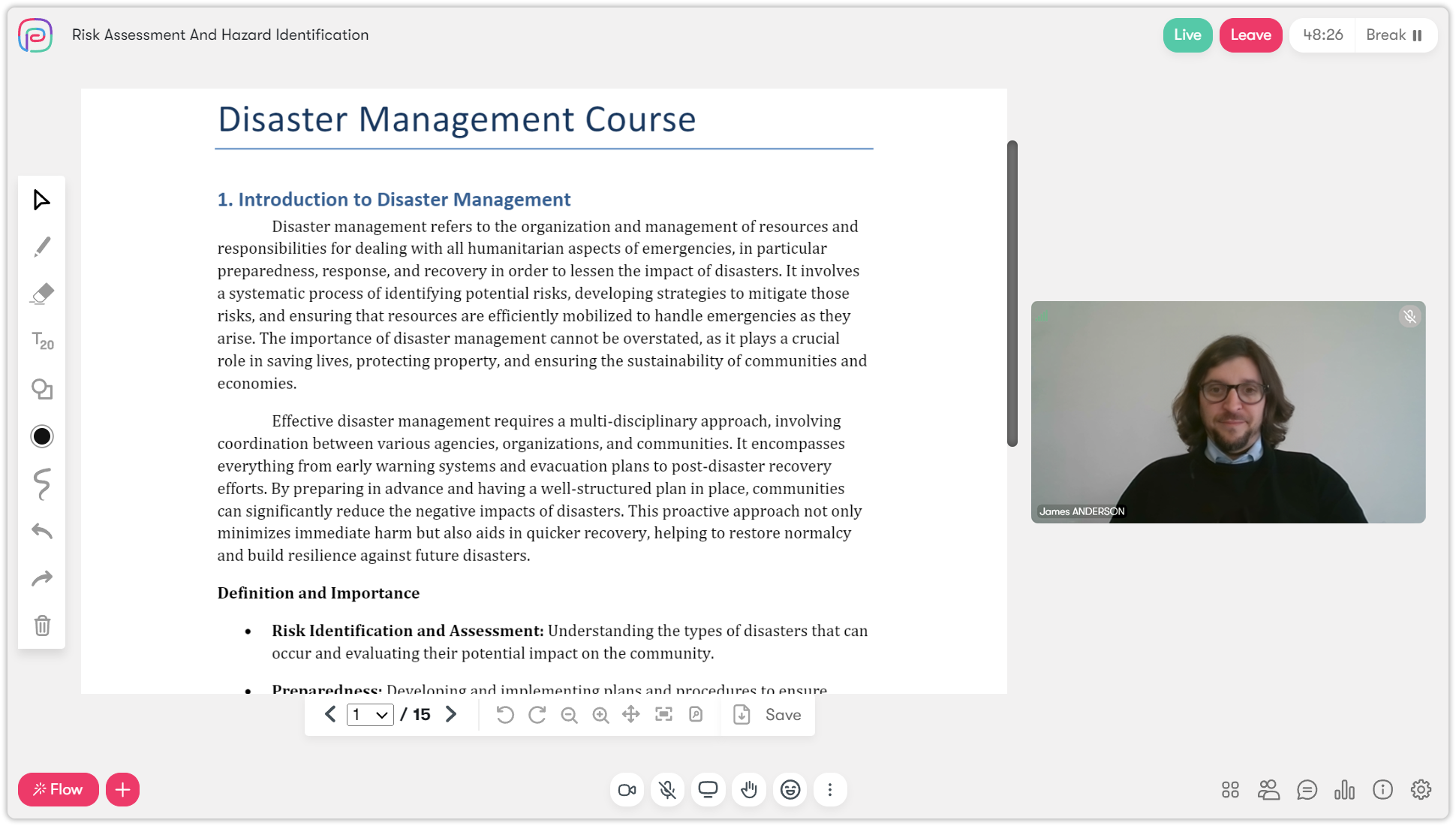
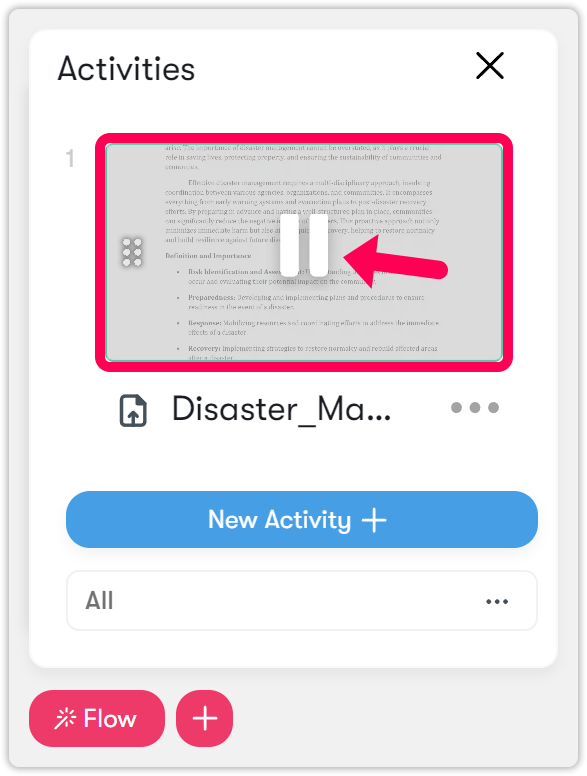
- Press the pause icon on your file in the Activities menu to remove it from the main screen.
IMPORTANT: You can upload only PDF files to the virtual classroom. If you have PowerPoint presentations, please convert them to PDF before uploading.