
Groups Instructor Guide
Rooms
If you frequently hold meetings or training sessions on the same topic or with the same group of people in Constructor Groups, you can take advantage of the Rooms feature designed for your convenience. Simply create a virtual classroom using the Rooms feature once and conduct your virtual class or meeting anytime you want.
Creating a virtual room
- In the menus navigation list on the left, click Rooms.
- Click New room.
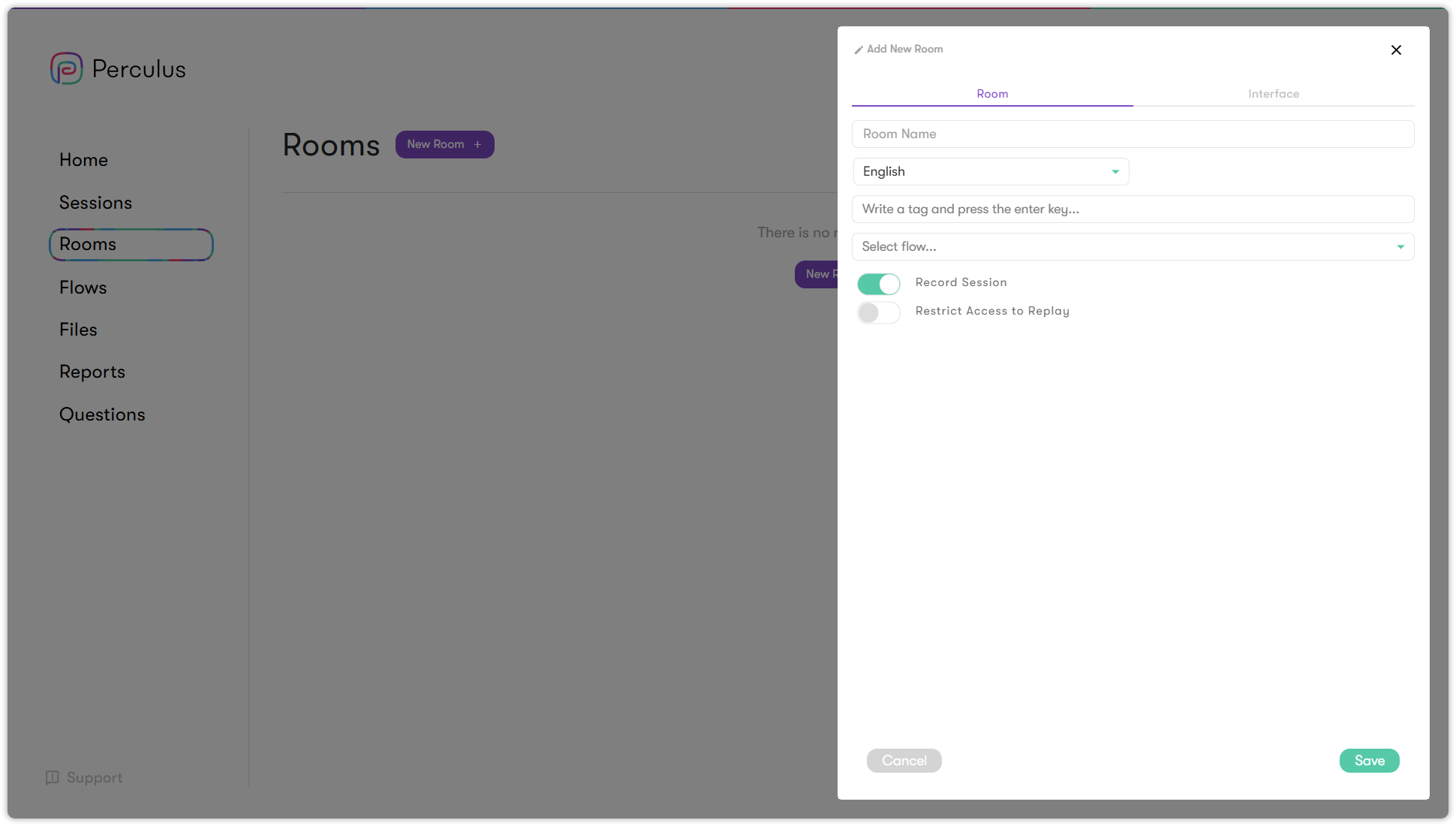
- Specify the room details:
- In the Room Name text box, enter the room name.
- Select the room language from the language drop-down list (Turkish, English or Arabic).
- In the Tag text box, enter your tags (for multiple tags, press ENTER after each tag).
- In the Select Flow drop-down list, select a flow.
- Select if you want room sessions to be recorded: enable the Record Session toggle to activate recording.
Note: When Record Session is disabled, sessions will not be saved.
- Select if you want to restrict access to session replays: enable the Restrict Access to Replay toggle to prevent participants from viewing the replay.
Note: When Restrict Access to Replay enabled, the session will still be recorded, but the replay will not be available. When disabled, participants can view the replay.
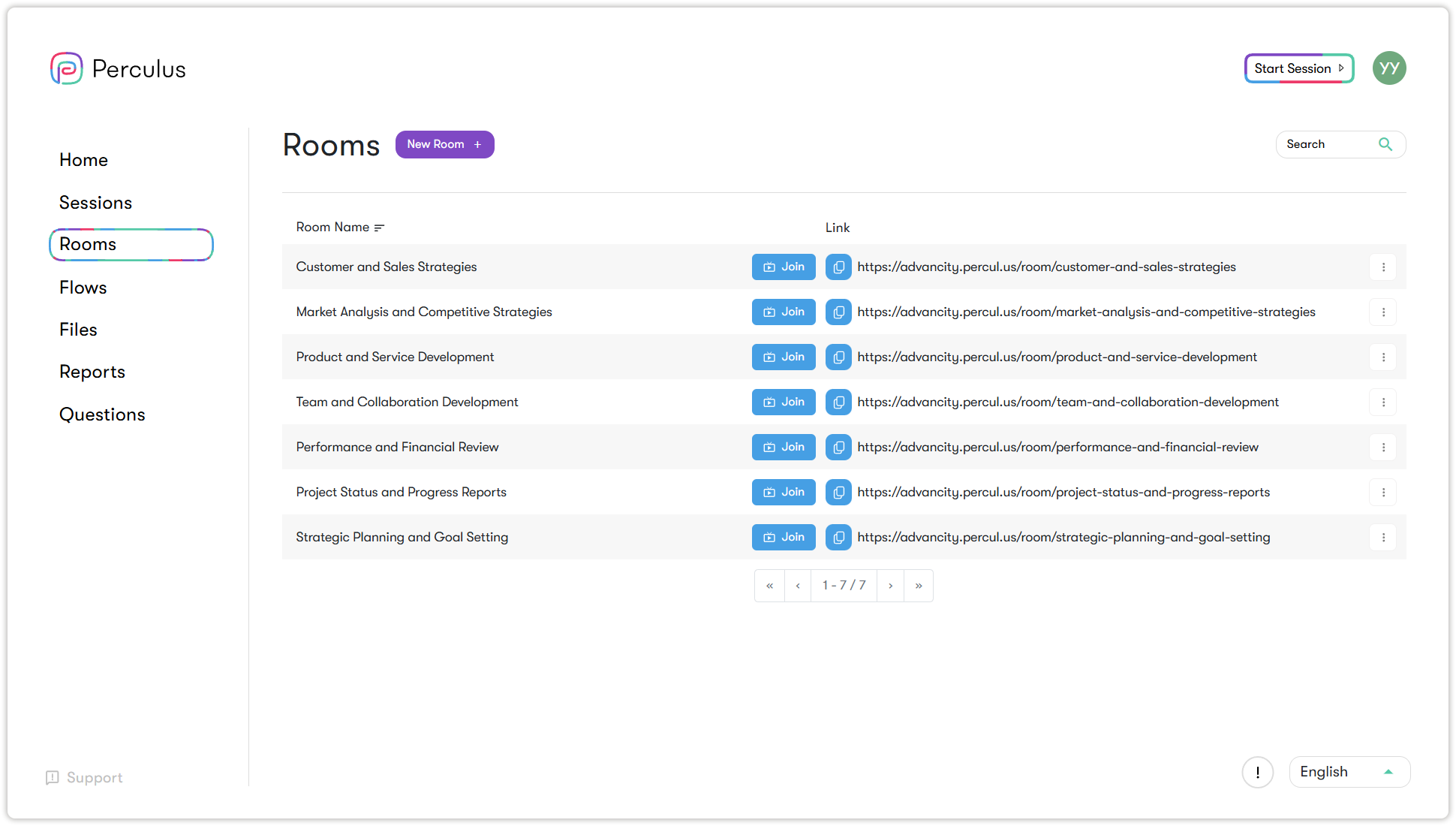
- Click Save at the bottom-right corner of the window. A new room is created and added to the list, and you can join it by clicking Join.
For detailed information about the virtual classroom session screen, see Joining sessions or rooms.