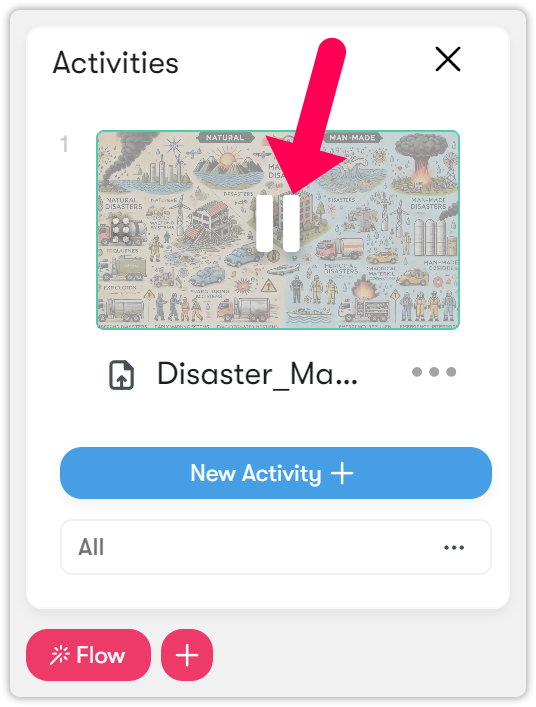
Flow menu
Videos and cameras
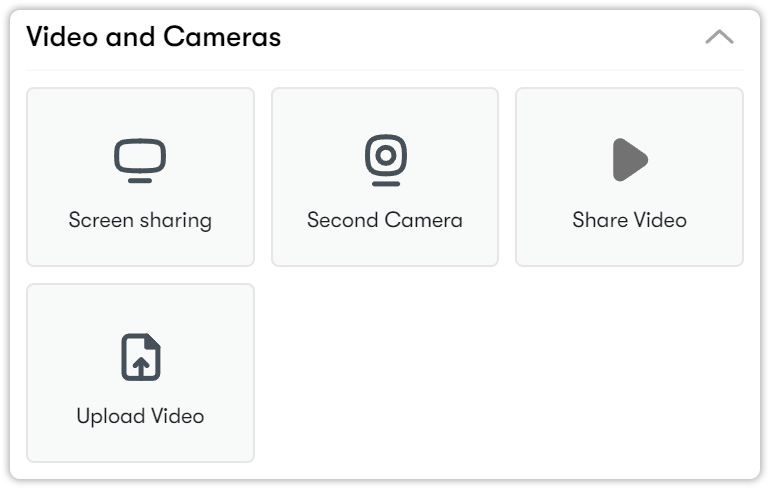
The Videos and Cameras menu offers options for screen sharing, using a second camera, video sharing, and video uploading to the system.
Sharing your screen
You can follow the steps below to mirror your computer screen to your students.
- Click Screen Sharing.
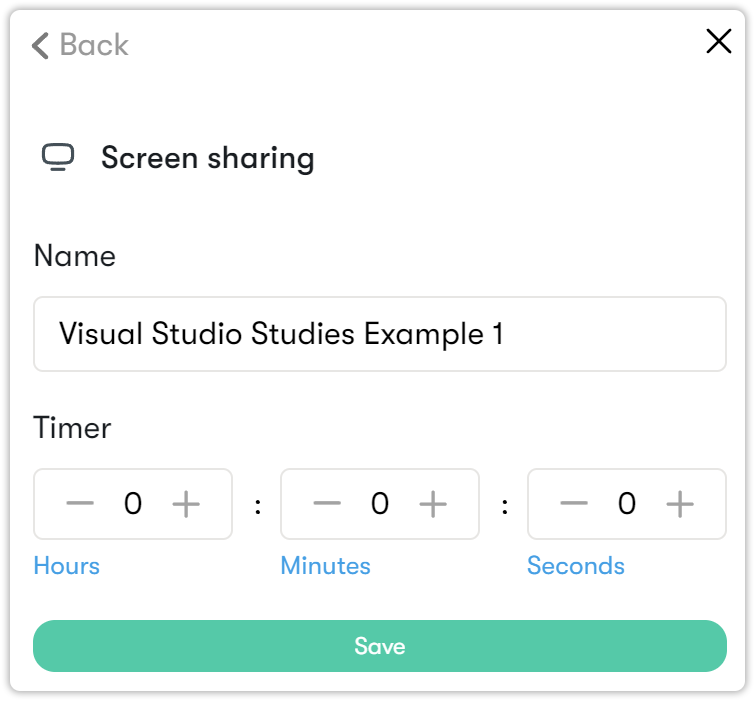
- Name the activity. If you wish, you can specify your screen sharing duration from the timer section. Then press Save.
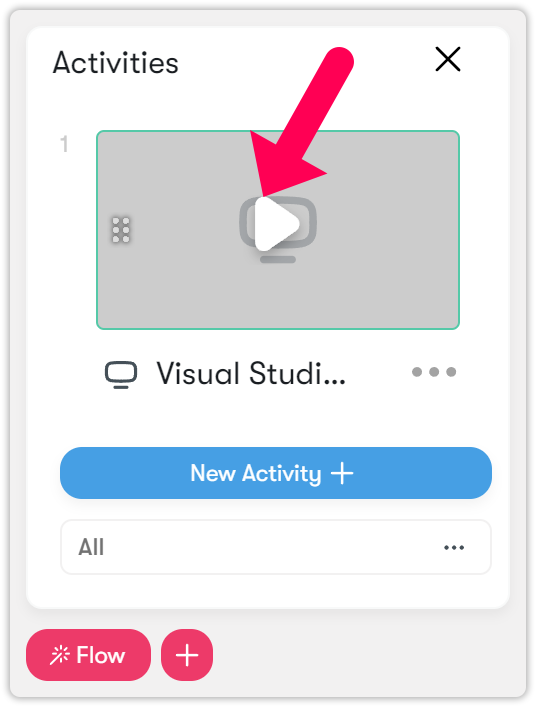
- If you click the Play button on the activity. The screen sharing options will be displayed.
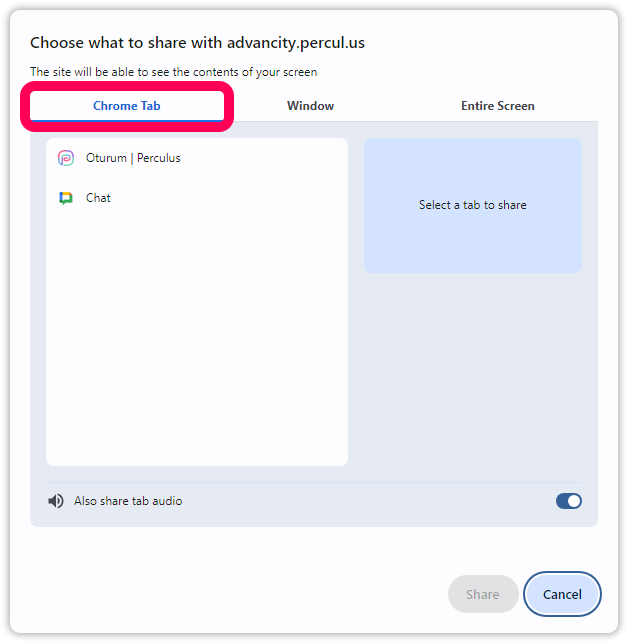
- To share a Chrome tab, select the desired tab. Only the selected tab will be visible to students, while your other activities on the computer remain private.
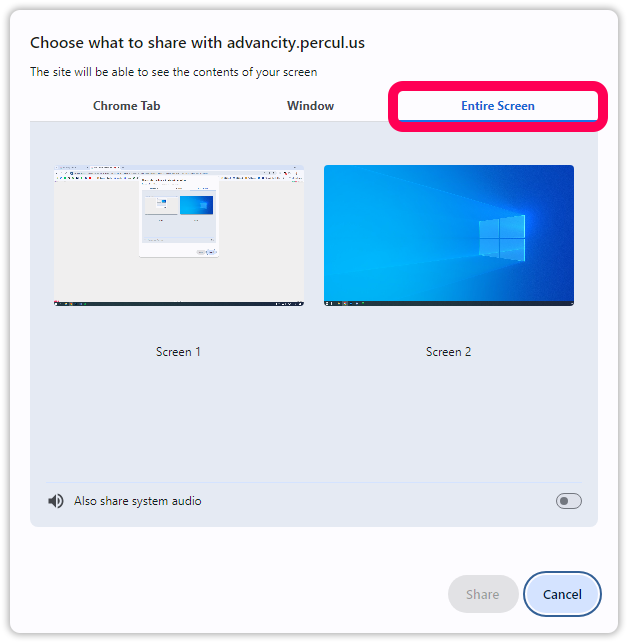
- To share your entire screen, select it from the Entire Screen section. If you want to include system sound, enable the Share system sound option. Then click Share to start presenting.
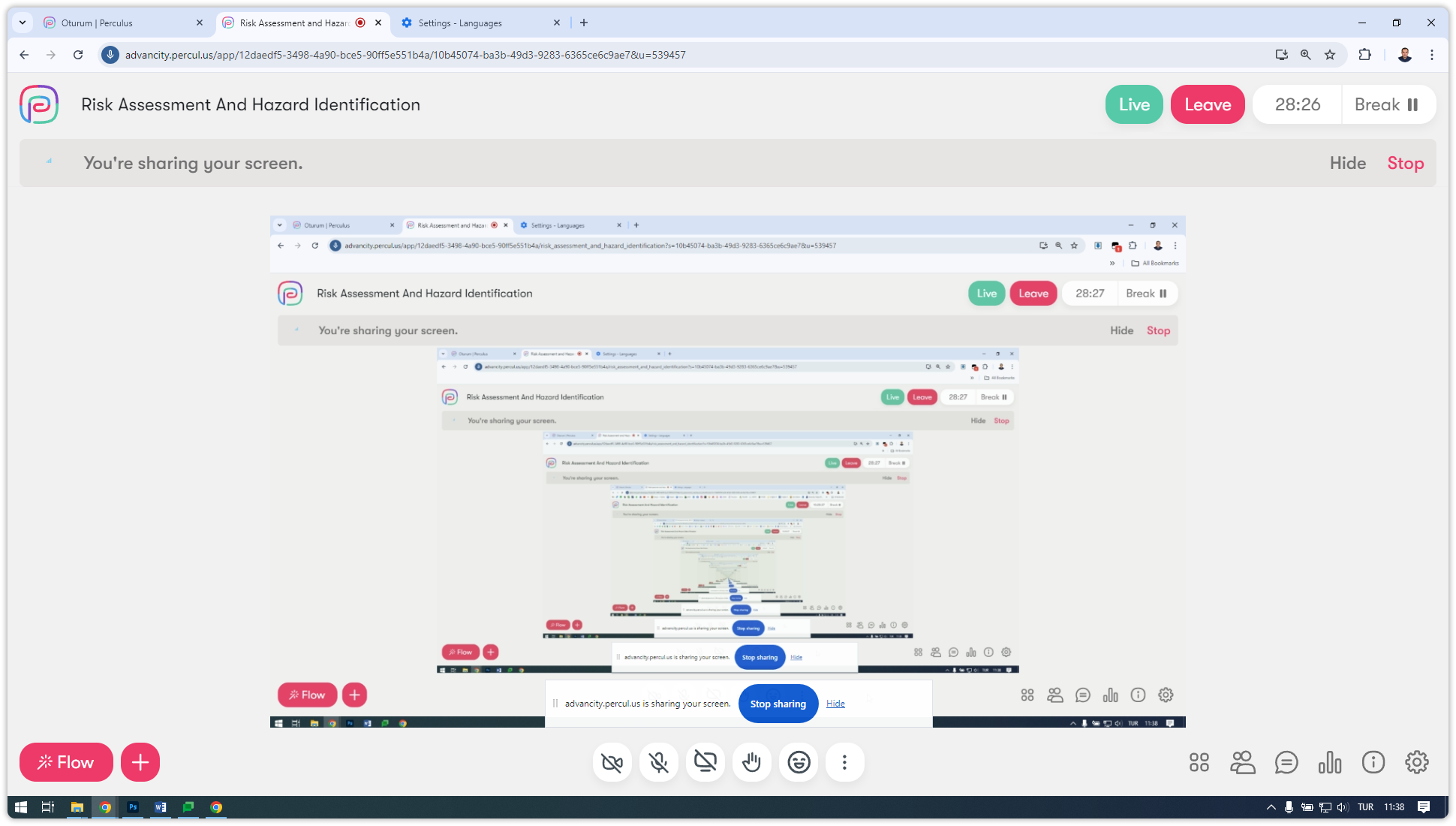
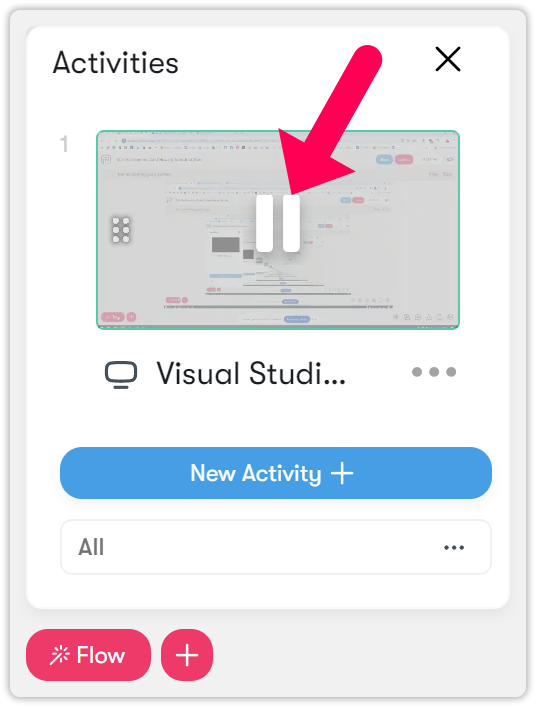
- Your screen will now be shared. To stop sharing, click Stop Sharing.
Using the second camera
If an external camera is connected, you can use this feature to operate dual cameras during your lesson.
- Click the second camera icon.
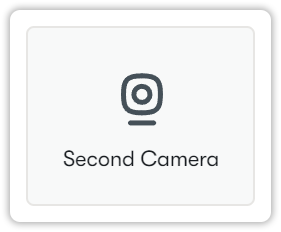
- Select the external camera you want to use during the virtual classroom.
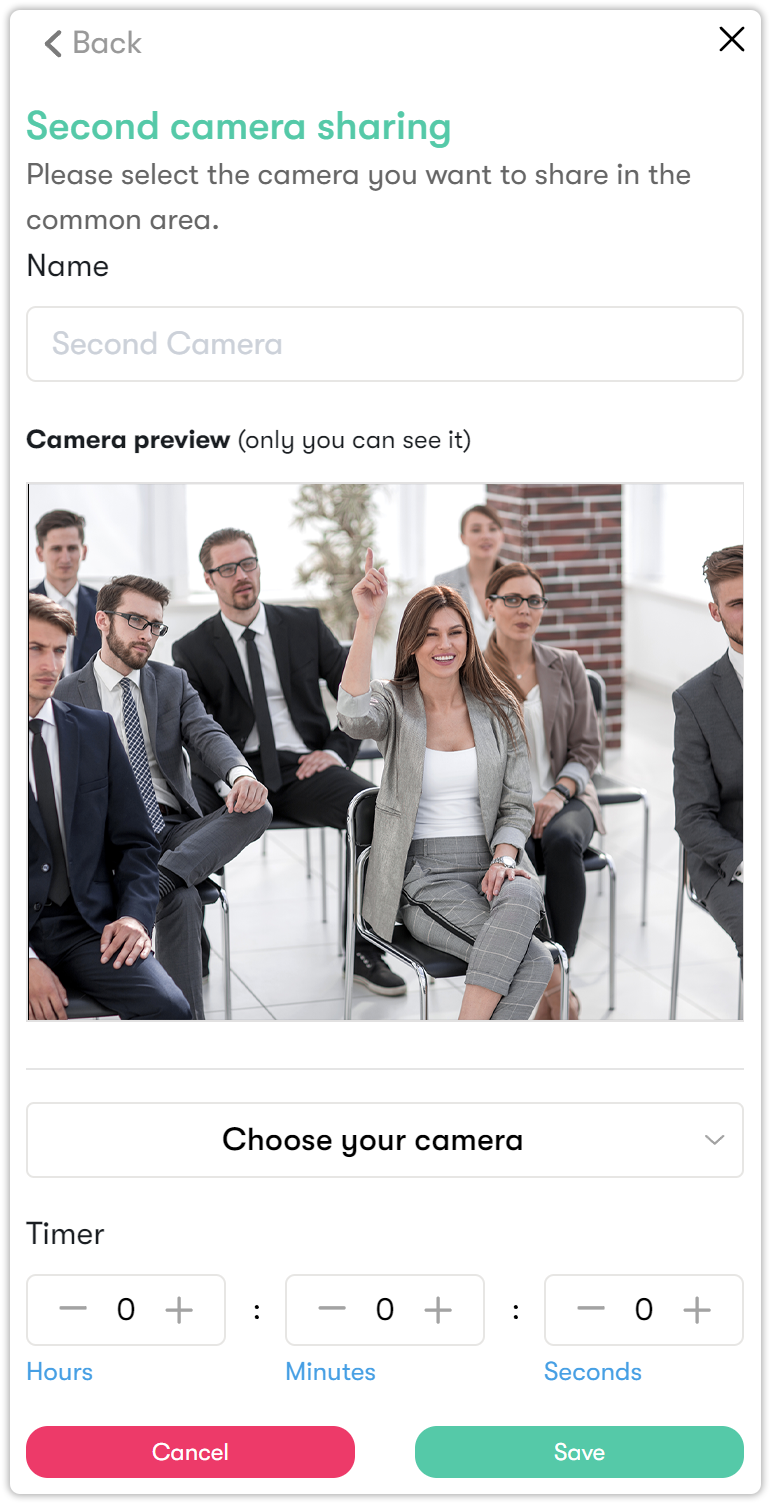
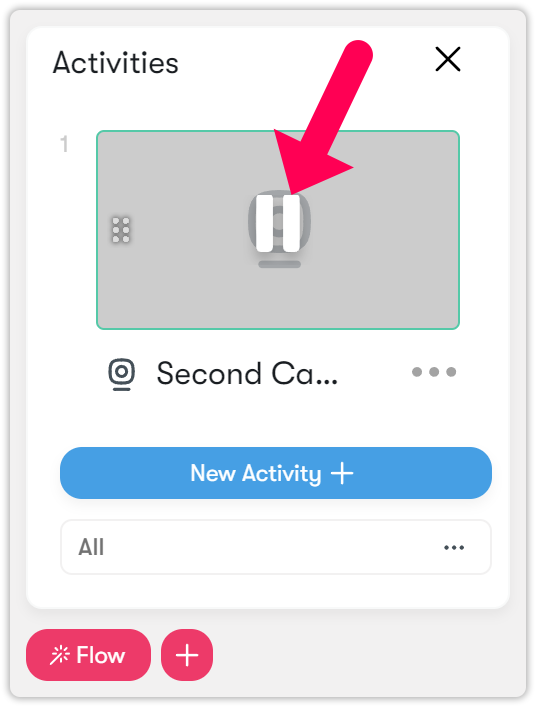
- Click Save. The second camera activity will appear in the Flow section. From here, you can click the play icon to start using the camera.
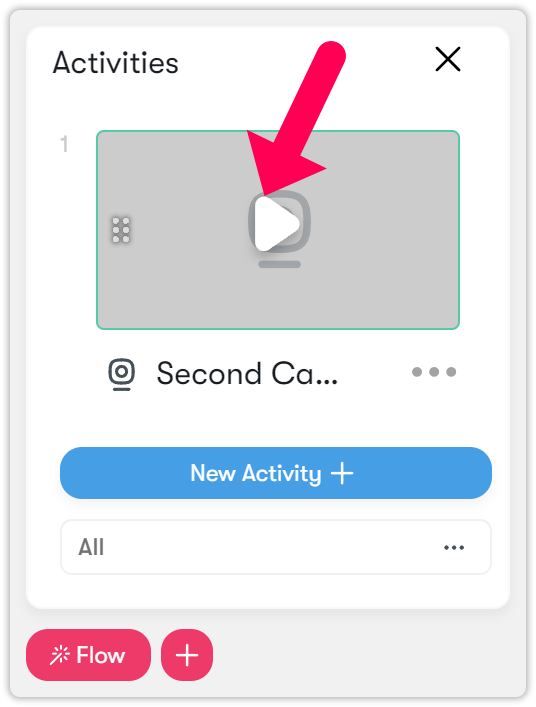

- To stop the camera, click the pause icon.
Sharing videos
You can share videos to your students here by following these steps:
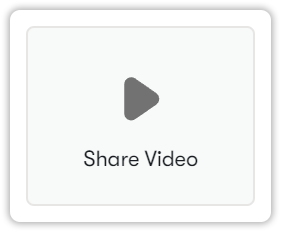
- Click on the share video button.
- To share a video, enter the URL link in the Link field.
If desired, you can specify a duration in the meter section and choose whether to allow students to change video settings.
After making your selections, click Save. Currently, supported platforms include YouTube, Vimeo, and Dailymotion.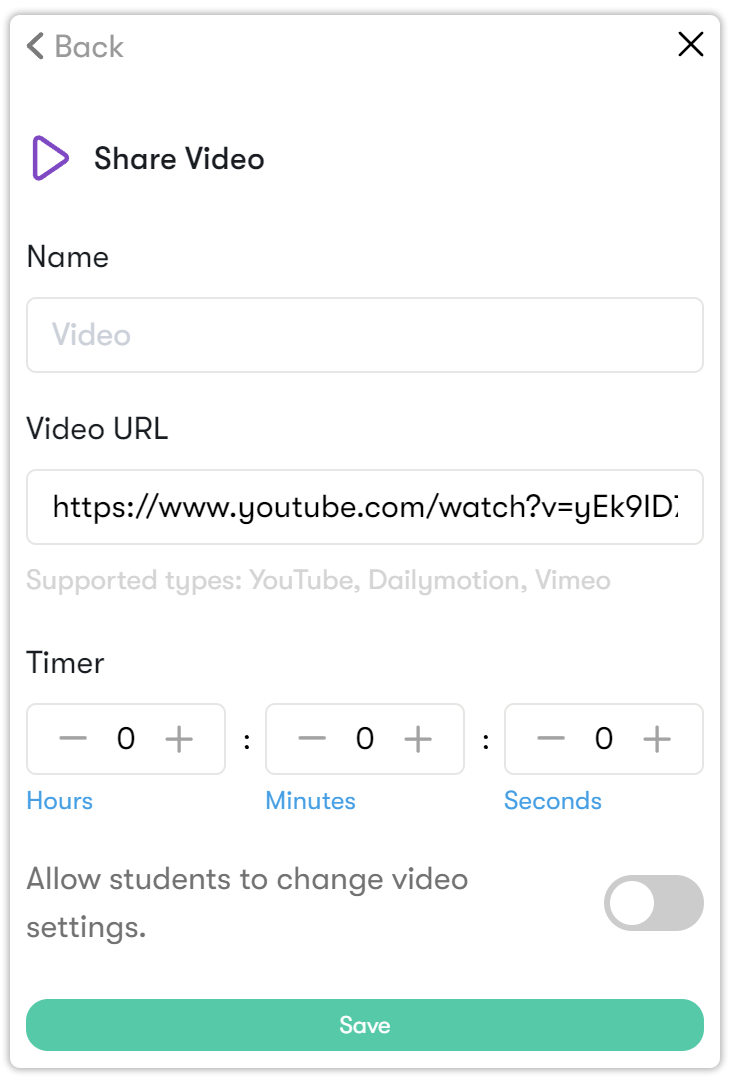
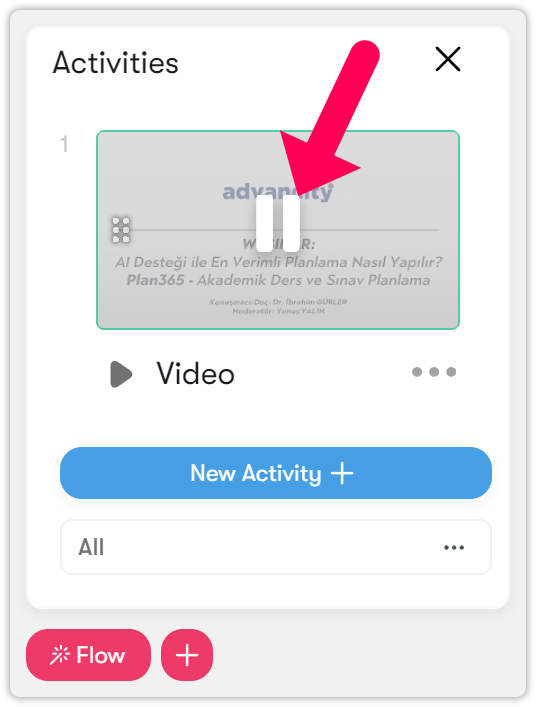
- Your video will appear in the Flow section. Click the play icon to make it visible to students.
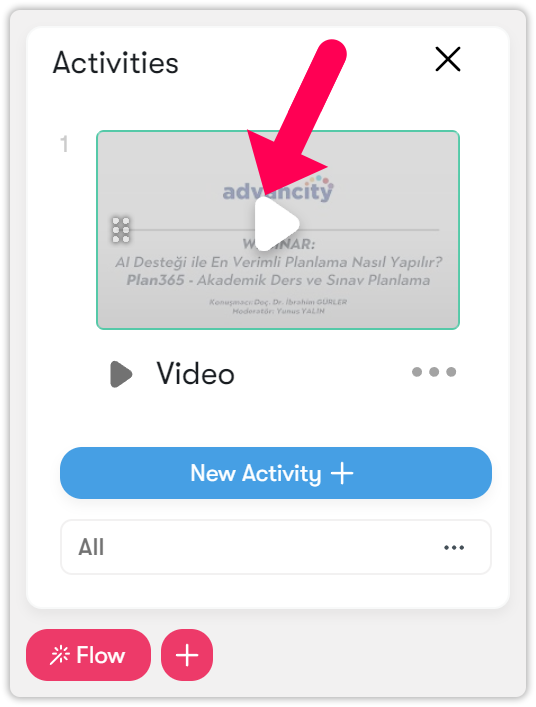
- The video will start streaming on the screen.

- To remove the video from the screen, click the pause icon in the Flow menu.
Uploading videos
If you want to use a video in .mp4 format from your computer during your lesson, follow these steps:
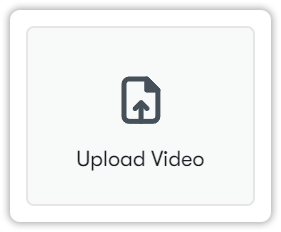
- Click on the upload video button.
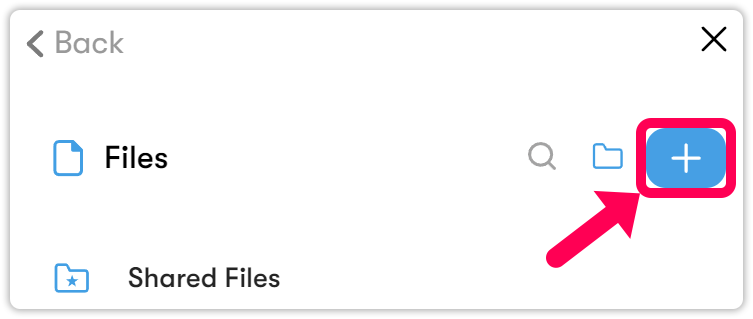
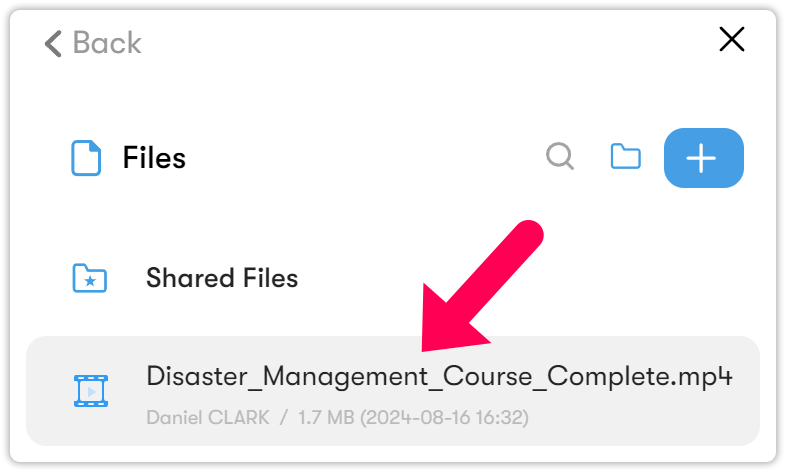
- Click on the blue plus button to upload a file.
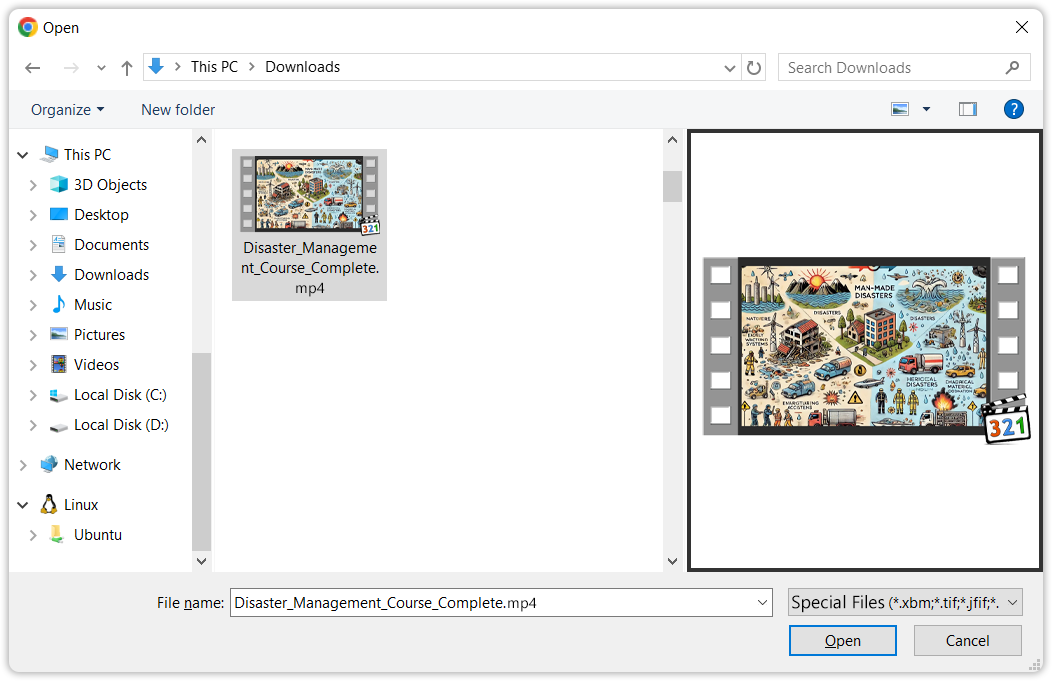
- Select the video in the .mp4 format that you want to upload to the system. Click Open.
- Click on the video to move it to the Flow section.
- Click to the play icon to show the video to the students.
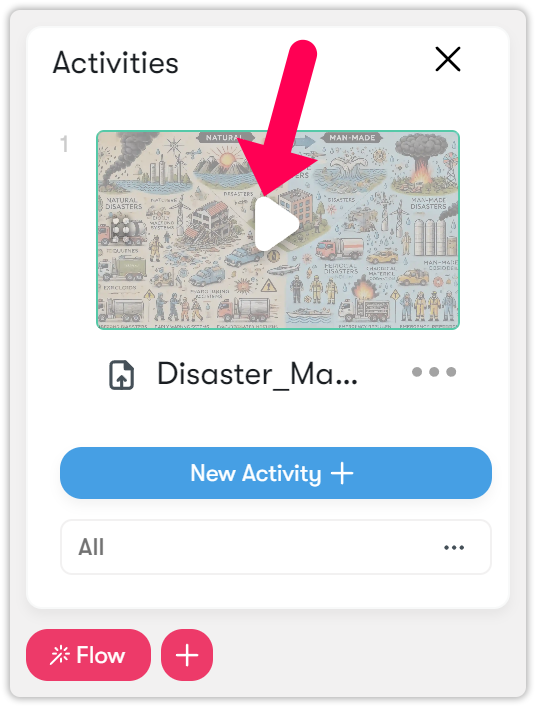
- The video will be shown to students.

- After you are done with the video, click the pause icon in the Flow to remove it from the screen.