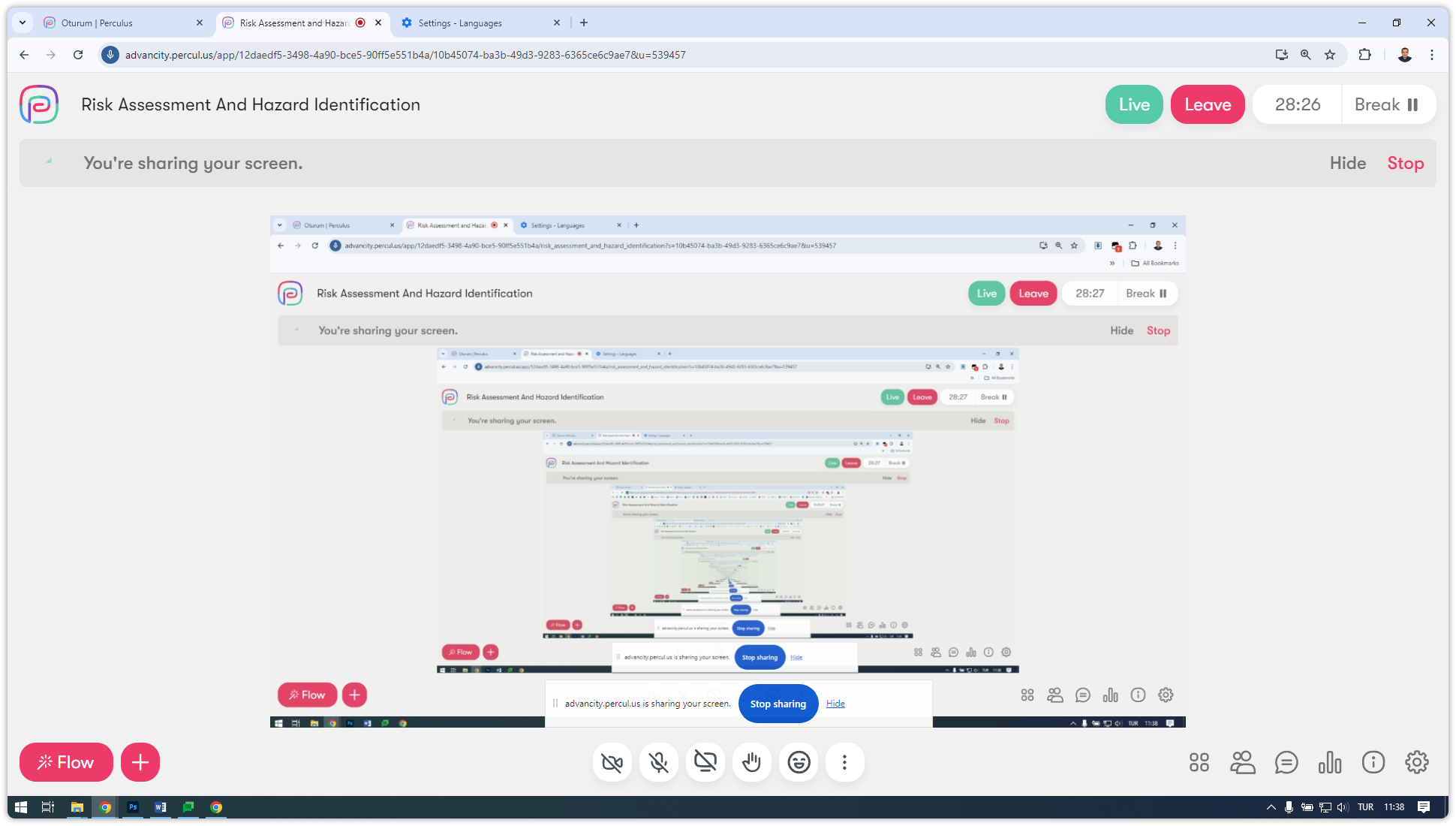
Menus on the Home screen
Sharing your screen
If you plan to share your screen and present to students during your lesson, follow these steps:
- Click the Screen Sharing icon.

- Choose what to share:
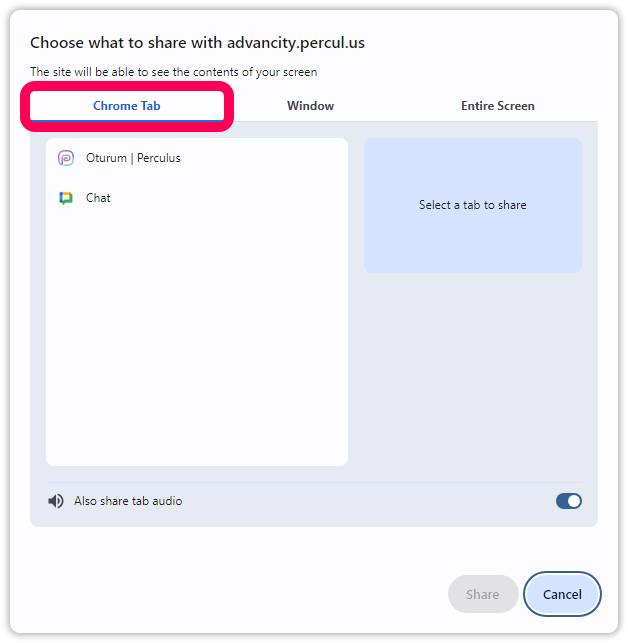
- A Chrome tab — select the specific tab you want to share. Only the selected tab will be visible to students, while your other activities remain private.
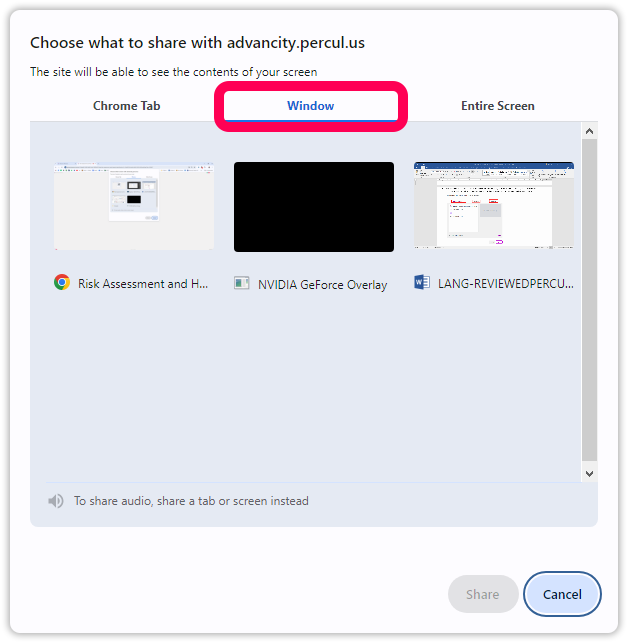
- A specific window — select the window you want to present. Students will see only the selected window; other activities remain hidden.
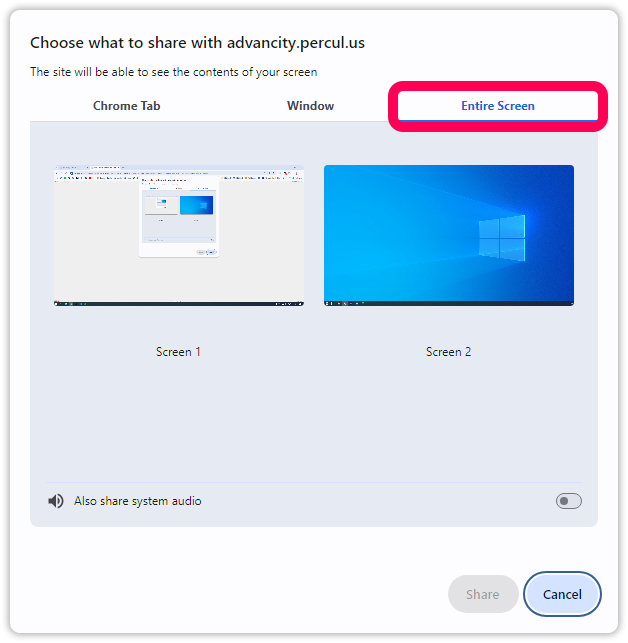
- Your entire screen — select your screen from the Whole Screen section. To include system sound, enable the Share system sound option. Click Share to start presenting.
- A Chrome tab — select the specific tab you want to share. Only the selected tab will be visible to students, while your other activities remain private.
- To stop sharing, click Stop Sharing.